---
isPublished: true
template: "page.peb"
title: "Automate Salesforce Quote Generation and eSignature with Flow"
displayName: "Quote Generation and eSignature with Flow"
description: "Build a Salesforce Flow to generate a quote PDF from a published iDialogue template and send one Contact an invitation to sign."
category: "support"
contentType: "guide"
audience: "admin,developer,business-analyst"
tags: "salesforce,flow,quote,opportunity,document-generation,pdf,esignature,contact,document-builder,coding-agents"
section: "support"
seoTitle: "Salesforce Flow Quote Generation and eSignature | iDialogue"
seoDescription: "Use Salesforce Flow to generate a quote PDF, create an iDialogue Experience, and send one Contact a link to review and sign."
seoImage: "https://www.idialogue.app/assets/img/support/automate-salesforce-quote-generation-esignature/01-template-signer.png"
llms: true
llmsSection: "Build Developer"
llmsTitle: "Automate Quote Generation and eSignature with Salesforce Flow"
llmsDescription: "Flow action inputs, outputs, template filters, signer setup, error handling, and stage-based automation for one Contact."
llmsOptional: false
llmsOrder: 31
---
Use Salesforce Flow to generate a quote PDF and send one Contact a link to review and sign it.
The document uses a published iDialogue Document Builder template.
An Experience gives the Contact access to the document and its signature fields.
Start with a Screen Flow. Test each action before you add stage-based automation.
This example creates a quote document from an Opportunity.
The final section explains how to use an Opportunity stage or a Salesforce Quote status as the trigger.
## Flow XML example
[Read the raw Salesforce Screen Flow XML](/assets/flows/v2.166/IDialogue_Single_Signer_Quote.flow-meta.xml).
Coding agents can fetch this file directly and use it as the starting example.
The Flow is **Draft** and uses the `rooms__` package references for a subscriber org.
Supply three Text inputs: `recordId` for the Opportunity, `primaryContactId`, and `templateDeveloperName`.
Inspect the installed package and adapt the example to the customer's org before deployment.
Get the customer's approval before deploying, activating, running, or sending email.
## Before you start
- Install **iDialogue v2.166 or later**. See [Releases](/releases.html) for the installation links.
- Confirm that the iDialogue Salesforce connection is active.
- Check the running user's [XP access and permissions](/support/xp-permissions.html), including action, record, field, and File access.
- Select one test Opportunity and one Contact with an email address that you can check.
- Identify the business approval that must occur before you send the quote.
The action names in this guide include the managed-package namespace, `rooms__`.
Use these names when you configure a Flow in an org that has iDialogue installed.
Standard Salesforce objects, such as Opportunity and Contact, retain their standard names.
| Flow action label | Apex action API name |
| --- | --- |
| **Generate XP Document** | `rooms__GenerateXPDocumentAction` |
| **Create Experience** | `rooms__CreateExperienceAction` |
## Process
```mermaid
flowchart TD
A[Publish a quote template with Signer 1] --> B[Get the Opportunity, Contact, and template]
B --> C[Review the source record and recipient]
C --> D[Generate XP Document]
D --> E{Success?}
E -- No --> X[Show Message and inspect existing results]
E -- Yes --> F[Review the generated PDF]
F --> G[Create Experience with the generated Content ID]
G --> H{Success?}
H -- No --> X
H -- Yes --> I[Send the Contact an email with the invitation link]
I --> J[Contact reviews and signs the document]
D -. Fault .-> Y[Show Flow FaultMessage and stop]
G -. Fault .-> Y
I -. Fault .-> Z[Keep the existing Experience and correct email delivery]
```
**Create Experience** prepares the Experience and returns the invitation link.
Use the native Salesforce **Send Email** action to send that link.
## 1. Create and publish the quote template
1. Open **Document Builder** in Salesforce.
2. Create a **Data Merge Template** for **Opportunity**.
3. Configure its Data Context Definition, or DCD.
4. Add the quote content, product rows, and required merge fields.
5. Open **eSign**. Configure one signer with **Signer order** set to **1**.
6. Place the signature block in the document. Add **Printed name** and **Signed date** if required.
7. Preview the document with the test Opportunity. Check its data and signature placement.
8. Save the template and select **Publish Template**.
The DCD defines the Salesforce data available to the template.
The Flow supplies the source record ID when it generates the document.
See [Salesforce Context Builder](/product/data-context-builder.html) and [Document Builder Template Tags](/support/docBuilder/templates/document-builder-template-tags.html).
**Create Experience** assigns its **Primary Recipient ID** to **Signer 1**.
For this example, pass the Contact that must sign the quote.
You can leave the template's **Default recipient** set to **Choose when sending**.
A template's **Default recipient** can supply an initial recipient during document generation.
The Flow's explicit Primary Recipient selects the Contact for this Experience.
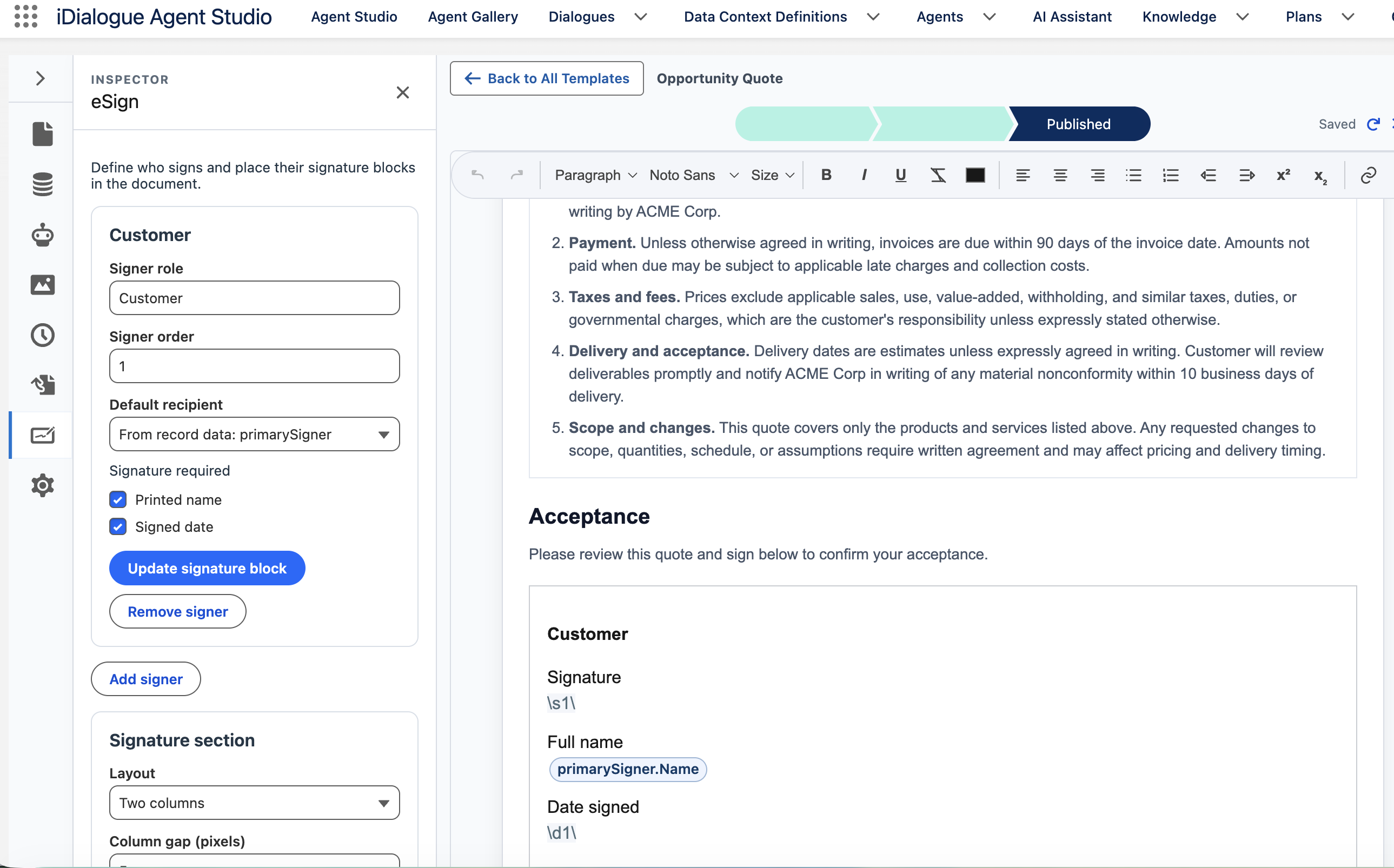
*Configure Signer 1 in the template. The Flow selects the Contact that receives the signing invitation.*
## 2. Create a Screen Flow and set the record context
In Salesforce **Setup**, open **Flows** and create a **Screen Flow**.
Use a name such as **Send Opportunity Quote for Signature**.
Create these Text variables:
| Variable | Use |
| --- | --- |
| `recordId` | Opportunity ID. Select **Available for input**. |
| `primaryContactId` | Contact ID. Supply it as an input or select one Contact on a screen. |
| `templateDeveloperName` | Developer Name of the published template that this Flow must use. |
Set the **Default Value** of `templateDeveloperName` to the published template's Developer Name.
If the caller supplies `primaryContactId`, select **Available for input** for that variable.
Otherwise, add a screen that selects one Contact before the Contact lookup.
When you add the Flow to an Opportunity record page, pass the record ID into `recordId`.
For Flow Debug, enter an existing test Opportunity ID.
Add **Get Records** for Opportunity, with `Id` equal to `recordId`.
Add **Get Records** for Contact, with `Id` equal to `primaryContactId`.
Store the Contact's `Id`, `Name`, and `Email`.
Add Decisions that stop the Flow if either record is missing or the Contact email is blank.
Show the Opportunity, Contact, and email on a review screen before you generate the document.
Use an explicit Contact selection rule in the automated version.
For example, use the primary Opportunity Contact Role, if your business maintains it.
Stop if the rule does not select exactly one Contact.
## 3. Get the published template Content record
Add **Get Records** for `rooms__Content__c`.
This record represents the published document template.
Select it by its `rooms__DeveloperName__c` value and check its publication fields.
| Field | Operator | Value |
| --- | --- | --- |
| `rooms__DeveloperName__c` | Equals | `templateDeveloperName` |
| `rooms__IsActive__c` | Equals | `True` |
| `rooms__IsLatest__c` | Equals | `True` |
| `rooms__TemplateStage__c` | Equals | `Publish` |
| `rooms__Type__c` | Equals | `DataMergeTemplate` |
| `rooms__IsDataMergeTemplate__c` | Equals | `True` |
| `rooms__TargetObjectApiName__c` | Equals | `Opportunity` |
| `rooms__XPTemplateId__c` | Is Null | `False` |
| `rooms__XPTemplateRevisionId__c` | Is Null | `False` |
| `rooms__ActiveContentVersionId__c` | Is Null | `False` |
| `rooms__DataContextDefinition__c` | Is Null | `False` |
Use **AND** for these conditions, except the two template-type conditions.
Either `rooms__Type__c = DataMergeTemplate` or `rooms__IsDataMergeTemplate__c = True` satisfies the template-type check.
Store all matching records and count them.
Continue only when the count is one. Stop if the selection is missing or ambiguous.
Keep its `Id`, `rooms__ActiveContentVersionId__c`, and `rooms__ActiveContentDocumentId__c`.
Add a **Get Records** for ContentVersion:
- `Id` equals the template's `rooms__ActiveContentVersionId__c`.
- `rooms__IsPublished__c` equals `True`.
Stop if that version is missing.
If the template has a `rooms__ActiveContentDocumentId__c` value, require the version's `ContentDocumentId` to match it.
This check uses the published version. A newer draft File version does not replace it.
Do not select a generated document as the template.
The template Content ID and the generated instance Content ID have different uses.
## 4. Call Generate XP Document
Add the **Generate XP Document** Apex action, `rooms__GenerateXPDocumentAction`.
Configure these inputs:
| Input label | Input API name | Value |
| --- | --- | --- |
| Source Record ID | `recordId` | The Flow's `recordId`. |
| Published XP Template Content ID | `templateContentId` | `Id` from the template Content record. |
| PDF Attachment Parent ID | `parentId` | Optional. Defaults to the source record. |
| PDF File Name | `fileName` | Optional. Leave blank to use the template's naming. |
| Document Title | `title` | Optional. Leave blank to use the default title. |
This sets the document generation context.
The published template supplies its DCD. A separate DCD action is not required.
Store the action outputs. The API names are case-sensitive.
| Output label | Output API name | Use |
| --- | --- | --- |
| Success | `success` | Required Decision before the next action. |
| Message | `message` | Result details and error instructions. |
| Instance Content ID | `contentRecordId` | Input to Create Experience. |
| Exact PDF ContentVersion ID | `contentVersionId` | Check or download the exact generated PDF. |
| PDF ContentDocument ID | `contentDocumentId` | Open the Salesforce File. |
| XP Document ID | `documentId` | Document reference for diagnostics. |
| XP Revision ID | `revisionId` | Generated document revision reference. |
| Rendered XP Revision ID | `renderedRevisionId` | Revision used for the PDF. |
| Source Record ID | `recordId` | Confirm the source record. |
| PDF Attachment Parent ID | `parentId` | Confirm the attachment destination. |
| PDF File Name | `fileName` | Confirm the generated filename. |
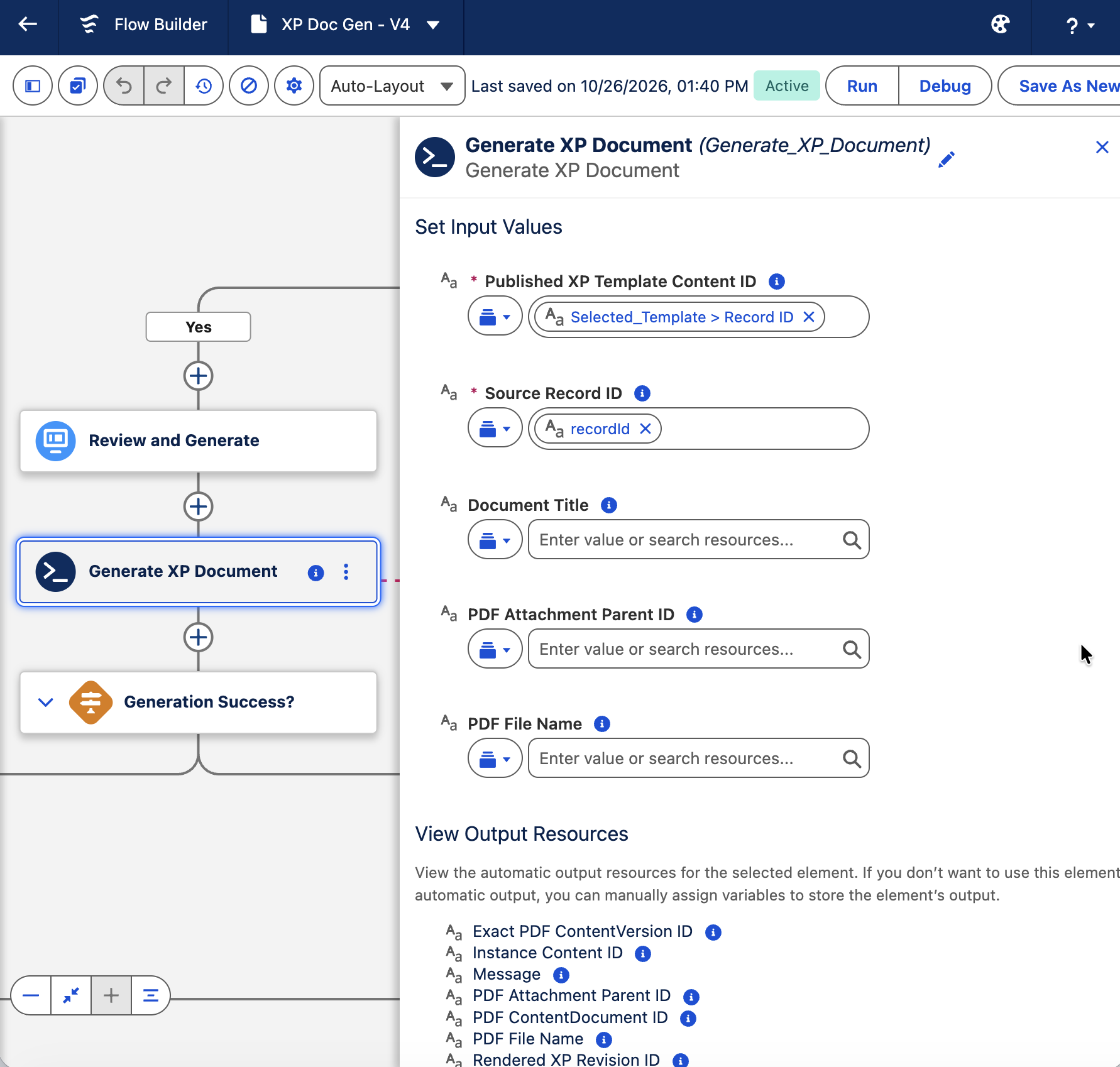
*The screenshot uses a diagnostic example Flow. Its transaction test and additional result displays are not required for this procedure.*
Add a Decision immediately after the action.
Continue only when `success` equals `True` and `contentRecordId` is not blank.
On the other path, show `message` and stop.
Add a Fault connector from the action to an error screen.
Show `$Flow.FaultMessage` on that screen.
In the action's advanced transaction settings, use **Let the flow decide**.
On the success path, show a result screen with a link to the generated PDF.
Check the quote before selecting **Create Experience**.
This screen also separates the two actions during the initial test.
## 5. Call Create Experience
Add the **Create Experience** Apex action, `rooms__CreateExperienceAction`.
| Input label | Input API name | Value |
| --- | --- | --- |
| Primary Document Content ID | `primaryDocumentContentId` | `contentRecordId` from Generate XP Document. |
| Primary Recipient ID | `primaryRecipientId` | The selected Contact's `Id`. |
| Experience Template ID | `experienceTemplateId` | Leave blank for this example. |
Use the generated **Instance Content ID** as Primary Document Content ID.
Do not use the template Content ID, XP Document ID, ContentDocument ID, or ContentVersion ID.
Store these outputs in separate Flow variables:
| Output label | Output API name | Use |
| --- | --- | --- |
| Success | `success` | Check before sending email. |
| Message | `message` | Result details and error instructions. |
| Room ID | `roomId` | Reference to the created Experience. |
| Primary Recipient Invite URL | `primaryRecipientInviteUrl` | Contact-specific link for the email. |
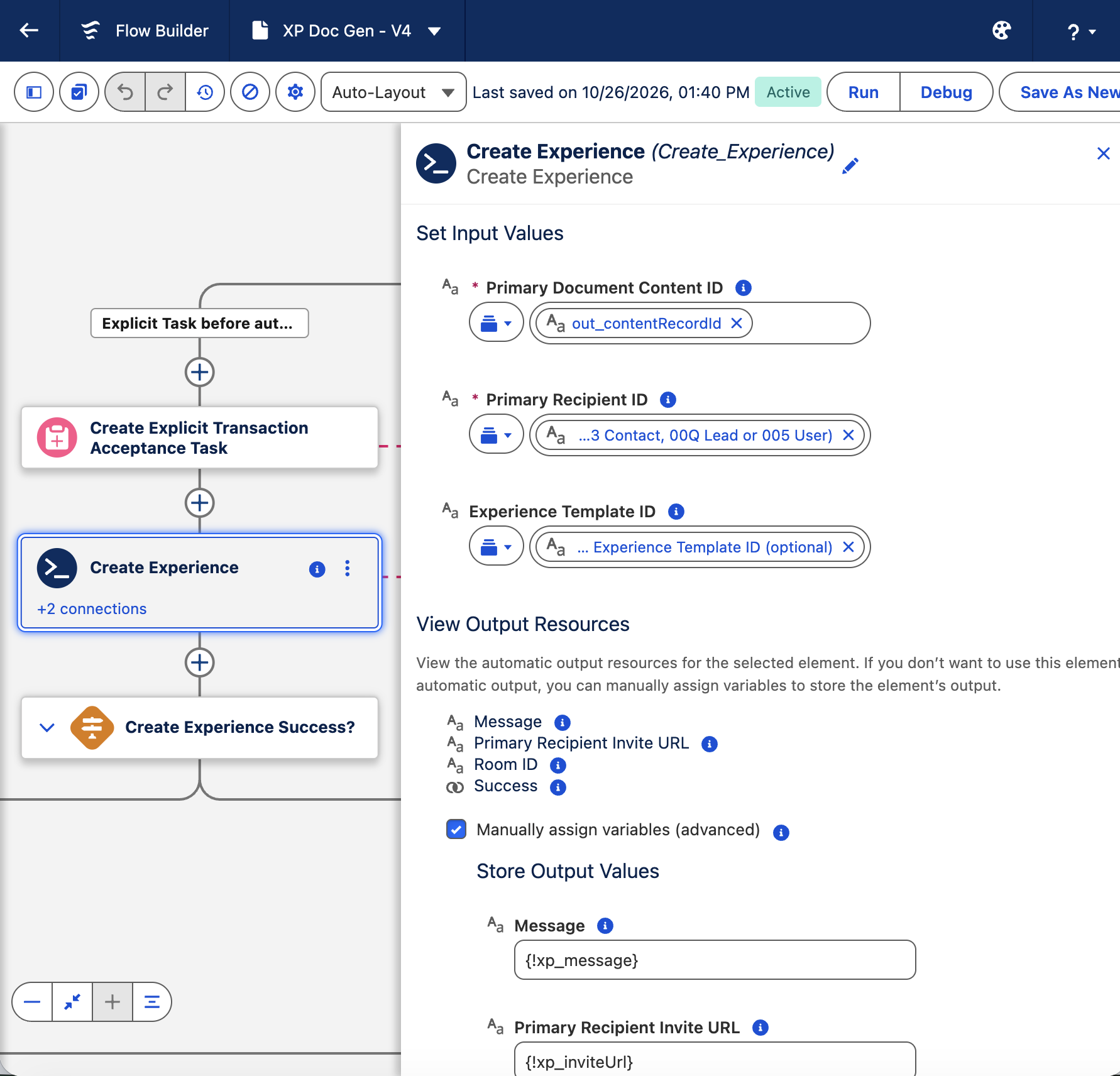
*This diagnostic example shows an Experience Template input and a Task transaction test. Leave Experience Template ID blank. Do not add the Task test to the customer Flow.*
Add a Decision after the action.
Continue only when `success` equals `True`, `roomId` is not blank, and `primaryRecipientInviteUrl` is not blank.
Otherwise, show `message` and stop. Do not send email.
Add a Fault connector that shows `$Flow.FaultMessage` and stops the Flow.
Keep any returned Room ID for investigation.
## 6. Send the Contact the invitation link
Show the Contact email and invitation on a review screen.
Add the native Salesforce **Send Email** action after that screen.
- Set the recipient address to the selected Contact's `Email`.
- Set a subject, such as **Your quote is ready for review and signature**.
- Include `primaryRecipientInviteUrl` in the body.
- Configure the permitted sender, email logging, and approval controls for your org.
Example plain text email:
```text
Hello,
Your quote is ready. Use this invitation link to review and sign the document:
{!primaryRecipientInviteUrl}
Thank you.
```
Use a Flow text template and insert the stored action output as the merge resource.
The invitation is specific to the Contact. Send it only to that Contact.
The Contact opens the link to review and sign the quote.
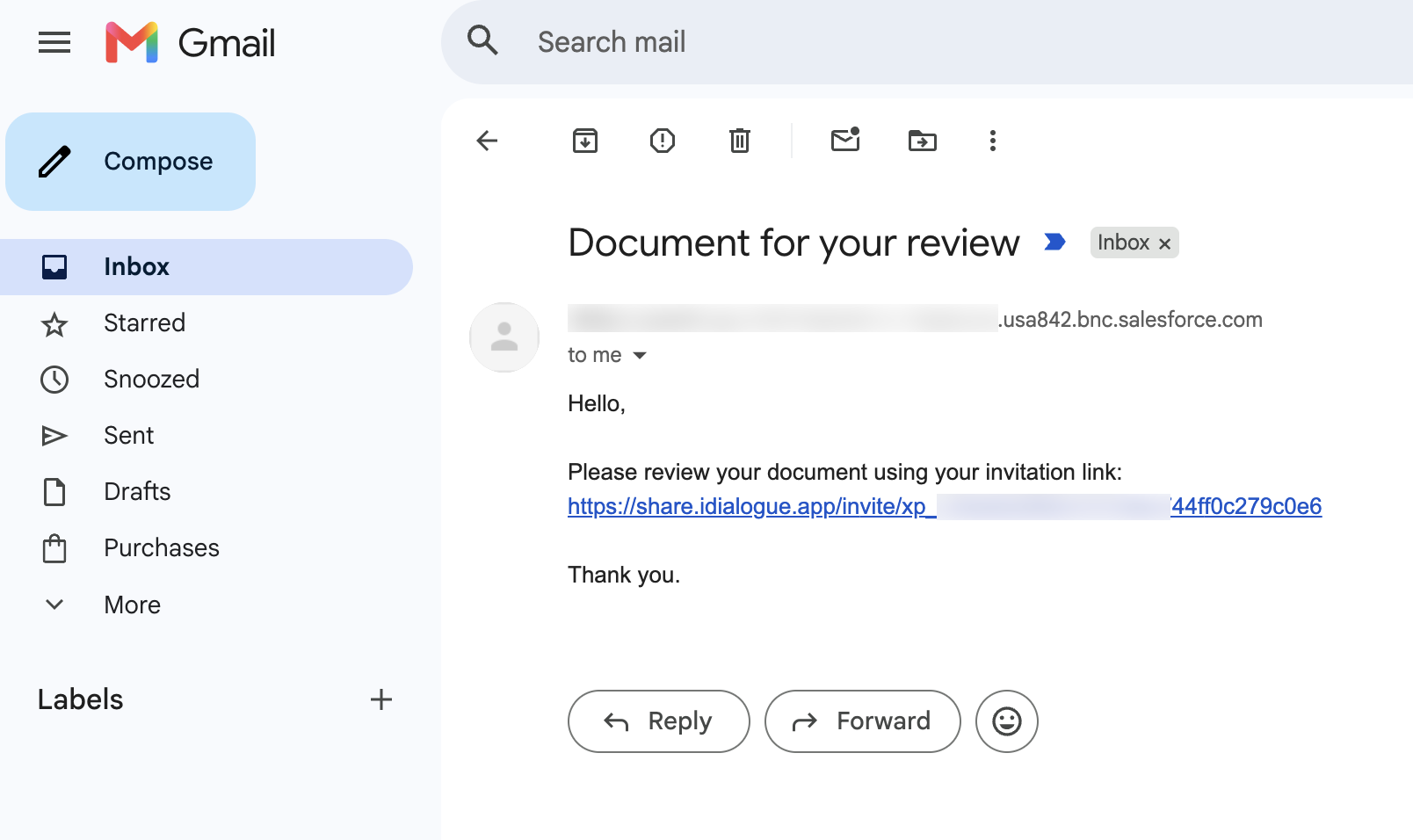
*The email contains the returned invitation link. Part of the invitation identifier is obscured in this example.*
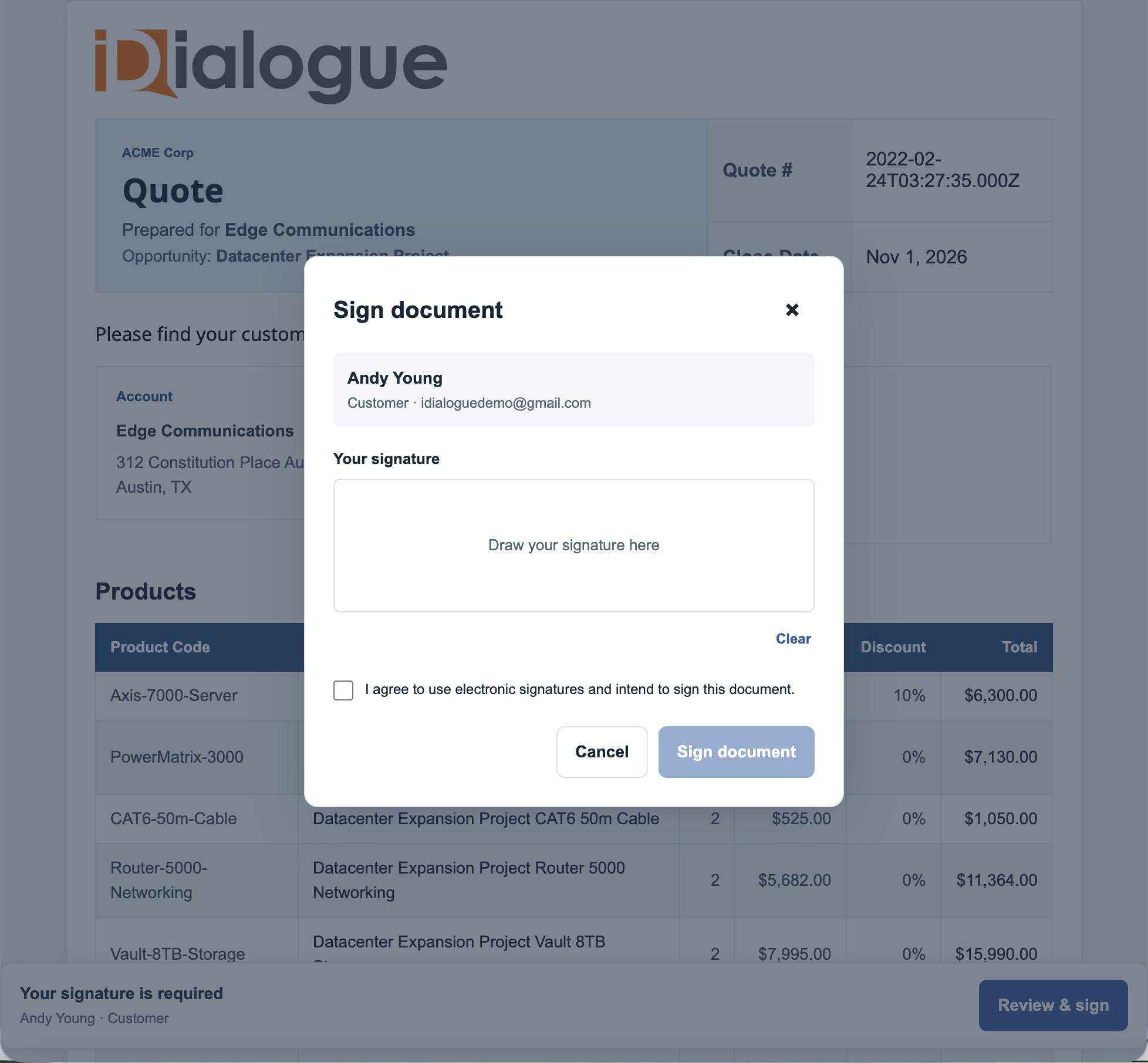
*Check the quote content and signer identity before you send the customer invitation.*
Connect the email Fault path to a screen that keeps the existing Room ID and invitation URL.
Correct the address or sender settings before retrying email.
Do not generate the document or create the Experience again to retry email.
Check an uncertain send result before you send another message.
## 7. Test the complete process
1. Run the Flow with one test Opportunity and a Contact whose inbox you can check.
2. Confirm that the correct published template is selected.
3. Generate the PDF once. Check its quote values, File attachment, and signature fields.
4. Create the Experience once. Confirm the returned Room ID and invitation URL.
5. Send the invitation. Open it in a private browser window.
6. Confirm that the Contact can review and sign the document.
7. Check the signed PDF in the source record's **Files** related list. Check the related Salesforce activity.
8. Test missing template, missing Contact email, action failure, and email failure paths.
Generated records and Experiences can remain after a later step fails.
Flow Debug rollback does not remove those results.
Inspect them before another action invocation. Do not add an automatic retry loop.
## 8. Start automatically from an Opportunity stage or Quote status
After the Screen Flow test succeeds, create an **after-save record-triggered Flow**.
Keep the screen example for manual testing and fault investigation.
Use the same action inputs, Success Decisions, and Fault paths in the automated Flow.
1. Select Opportunity or Quote as the triggering object.
2. Set the entry condition to the required stage or status and approved business state.
3. For updates, run only when the record changes to meet the conditions.
4. Add an **asynchronous path** for the callout actions, after the triggering save completes.
5. Get the current source record, published template, and intended Contact on that path.
6. Generate the document. Check Success before creating the Experience.
7. Check Experience Success before sending email.
8. Record the confirmed document, Experience, and send results using your org's tracking design.
Remove the Screen elements from the automated version.
Replace screen error messages with your org's monitored error handling.
Validate the action transaction settings in the target org.
Keep local record updates and email after the callout steps.
Flow Debug can use a different transaction context from a normal run.
Test the activated Flow with a controlled record change before general use.
See Salesforce's [Flow transaction guidance](https://help.salesforce.com/s/articleView?id=platform.flow_concepts_transaction.htm&language=en_US&type=5)
and [record-triggered Flow callout guidance](https://help.salesforce.com/s/articleView?id=000396239&language=en_US&type=1).
For a standard Salesforce **Quote**, use a published template whose target object is `Quote`.
Pass the Quote ID as the action's `recordId`.
Change the template filter from `Opportunity` to `Quote`, and use a DCD built for that source.
Select the Contact through the relationship or rule that your quote process uses.
Add duplicate protection before activating the Flow.
A stage change can occur more than once. A repeated Create Experience action creates another Experience.
Define when a new quote version needs a new invitation, and retain the existing results for email-only retries.
Do not set a Quote to Sent until the email submission is confirmed.
Email submission does not confirm delivery, opening, or signature completion.
## Correct common problems
| Problem | Action |
| --- | --- |
| An Apex action is missing. | Confirm the installed package version and class access. Search for Generate XP Document or Create Experience. |
| The template query returns no records. | Check Developer Name, source object, active/latest flags, Publish stage, DCD, and published version fields. |
| Generation returns Success = False. | Read its full Message. Inspect returned Content and File references before another invocation. |
| Create Experience rejects the document ID. | Pass generation's `contentRecordId`. Check that the generated Content is accessible. |
| The document opens without signing. | Confirm that the published template contains Signer 1 and placed signature fields. Pass the intended Contact as Primary Recipient ID. |
| An action follows its Fault path. | Capture `$Flow.FaultMessage`, the source record ID, action name, and any returned identifiers. |
| Email fails. | Keep the existing Experience and invitation. Check the Contact email, sender, deliverability, and email logs. |
| The result is uncertain. | Check the related records and iDialogue Events before you retry. |
To inspect available error details:
1. Open the **App Launcher** and select **iDialogue Admin**.
2. Open **iDialogue Events**. Filter **Level** to **Error**.
3. Find a **Subject** that starts with **Generate XP Document:** or **Create Experience:**.
4. Read **Body**. Note **Created Date** and **Event ID** for support.
These actions can record errors in iDialogue Events.
An error record is not available for every failure. No error record does not prove success.
Use the action result and confirmed document, Experience, and email results to check the outcome.
If a problem continues, [submit a support request](/support/request/index.html).
Include the Flow name, source record ID, full Message or FaultMessage, and any returned document or Room IDs.
Do not include a customer invitation link in a public report.
## Use this guide with a coding agent
Give your coding agent this page and the [XP permission reference](/support/xp-permissions.html).
Use this starter prompt. Replace the bracketed values.
```text
Help me implement single-signer quote automation in Salesforce with iDialogue.
Read https://www.idialogue.app/support/automate-salesforce-quote-generation-esignature.html
and its linked permissions and release references.
Fetch the linked raw .flow-meta.xml example and use it as the starting Flow.
Inspect my authorized Salesforce metadata and installed iDialogue package.
Confirm v2.166 or later and the available Flow actions, input names, and outputs.
Use [Opportunity or Quote] as the source and [stage or status] as the trigger.
Use the published template [Developer Name].
Select one Contact through [relationship or approved business rule].
Start with a minimal Screen Flow for a test record.
Use Generate XP Document, check Success, then pass its contentRecordId
to Create Experience with the Contact as primaryRecipientId.
Leave experienceTemplateId blank. Send the returned invitation through native Flow email.
Preserve both returned-failure Decisions and Fault connectors.
Plan the asynchronous record-triggered version, approval controls, duplicate protection,
error monitoring, and an email-only retry path that reuses the existing Experience.
Present the change plan, metadata changes, and focused validation steps for my approval.
Do not deploy, activate a Flow, change org records, or send email without my approval.
```