
HTML PDF Document Templates
HTML PDF document templates let Salesforce admins and HTML-savvy teams generate PDFs from an HTML file instead of a Microsoft Word DOCX template.
Use this option when your team wants direct control over HTML, CSS, tables, branding, page breaks, and image placement. The generated PDF is attached back to Salesforce as a File, and the Flow receives the generated PDF ContentVersion ID.
This article covers record-attached PDF generation through the Salesforce Generate Document action. It does not cover document rooms, room item generation, or eSignature templates.
How it works
The workflow has four main parts:
- Upload an HTML or Pebble template as a Salesforce File.
- Create or select a Data Context Definition.
- Invoke the Salesforce Flow action
Generate Document. - Use the returned
Attachment IDas the generated PDFContentVersionID.
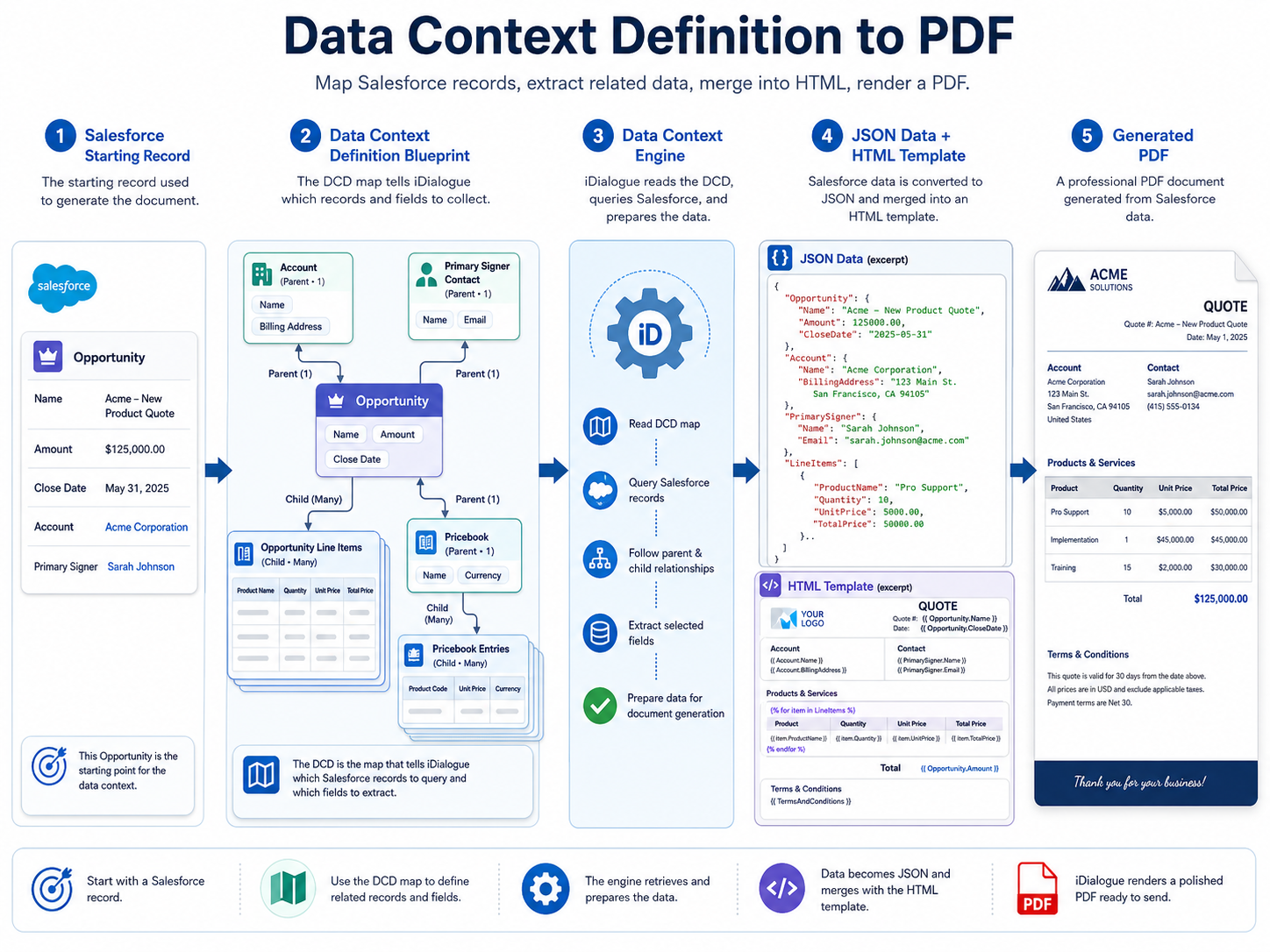
iDialogue uses the Data Context Definition to collect Salesforce data, renders the template, converts it to PDF, attaches the PDF to the target Salesforce record, and returns the generated PDF file ID to Flow.
What a Data Context Definition does
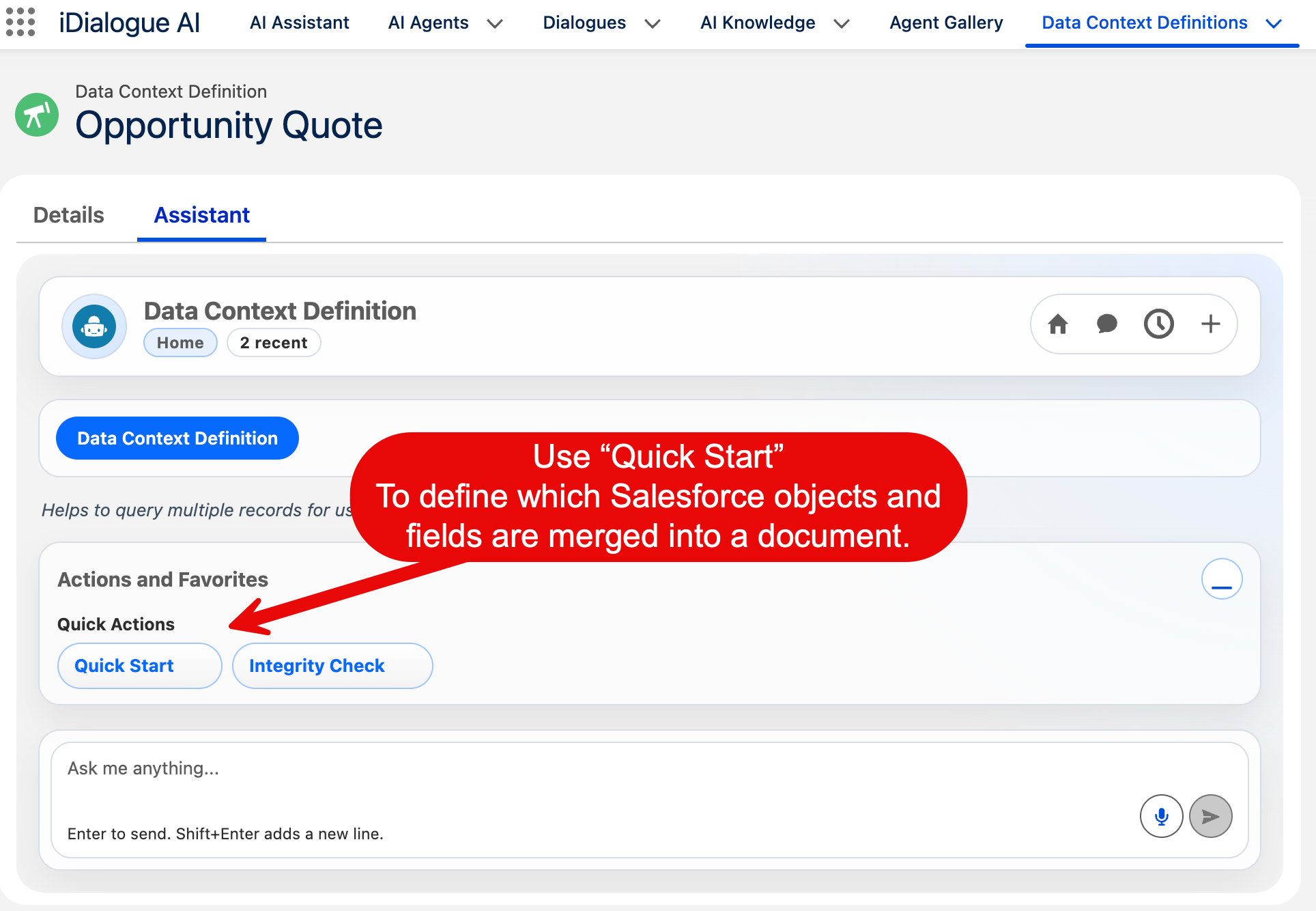
A Data Context Definition, or DCD, is the data collection plan for the document.
It tells iDialogue:
- which Salesforce record starts the document generation process
- which related records should be collected
- which fields should be available to the template
- what names the template can use when inserting values
The DCD is not the document layout. The HTML or Pebble template controls the layout. The DCD controls the data available to that layout.
For example, an Opportunity quote DCD might collect:
- the Opportunity record
- the related Account
- the primary Contact
- Opportunity Line Items
- Product fields for each line item
Test the template online first
Before uploading the template to Salesforce Files, use the iDialogue Template Playground to test the HTML or Pebble-style template against mock DCD data.
Use the playground to:
- paste or edit the template source
- paste JSON data shaped like the fields exposed by your Data Context Definition
- preview the rendered HTML
- inspect the merged output before generating a PDF in Salesforce
The playground is useful for fast template iteration and data-shape checks. It does not replace a final Flow test with Generate Document, because the Salesforce file attachment step, PDF rendering, image access, and final print CSS behavior are still validated in the real document generation flow.
Upload the template file
Create an .html or .peb file and upload it to Salesforce Files. Use the latest ContentVersion ID of that file in Flow.
The latest ContentVersion ID usually starts with 068. Do not use the ContentDocument ID that starts with 069 for this HTML PDF flow.
If you upload a newer version of the template, update the Flow or lookup logic so the action uses the latest published ContentVersion ID.
Configure the Flow action
In Salesforce Flow Builder, add the Apex action:
- Action:
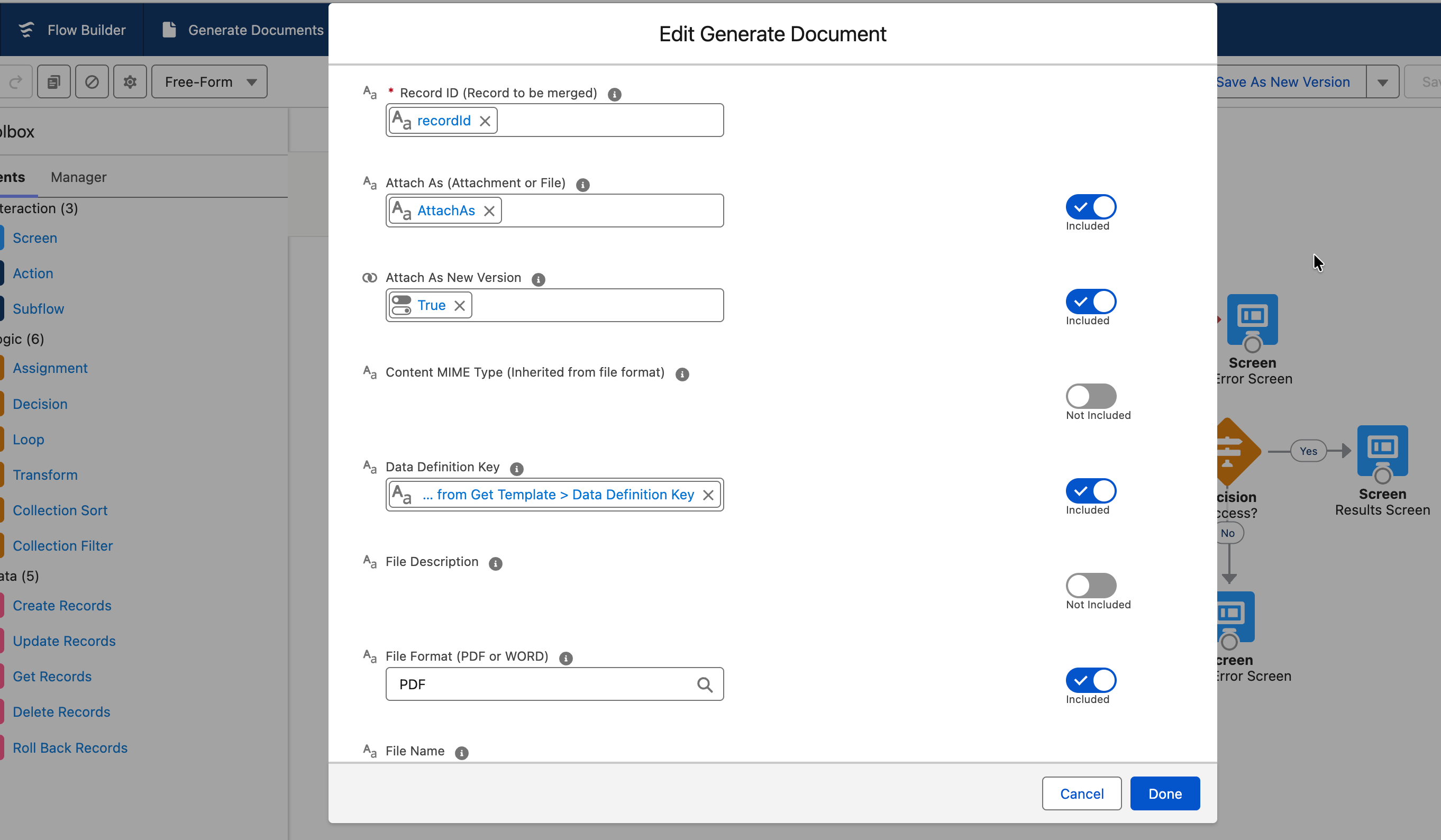
Generate Document Record ID: the Opportunity or source record IDDocument Template ID: the latest HTML or Pebble templateContentVersionIDData Definition Key: the DCD keyFile Format:PDFFile Name: the generated PDF filename, such asOpportunity Quote.pdfAttach As:File
When the action succeeds, the response Attachment ID is the generated PDF ContentVersion ID. Use that ID if the Flow needs to send the PDF as an email attachment or pass the generated file to another automation step.
Opportunity quote template example
The exact field names depend on your DCD. The example below assumes the DCD exposes:
OpportunityAccountPrimaryContactOpportunityLineItems- optional calculated values such as
EstimatedTax,QuoteTotal, andQuoteExpirationDate
Copy the template into a file named something like opportunity-quote.html or opportunity-quote.peb, update the logo URL and field names for your DCD, then upload it as a Salesforce File.
<!doctype html>
<html>
<head>
  <meta charset="UTF-8" />
  <title>Quote - {{ Opportunity.Name }}</title>
  <style>
    @page {
      size: Letter;
      margin: 0.6in;
      @bottom-right {
        content: "Page " counter(page) " of " counter(pages);
        font-size: 9px;
        color: #666666;
      }
    }

    body {
      font-family: Arial, Helvetica, sans-serif;
      font-size: 12px;
      color: #222222;
      line-height: 1.4;
    }

    h1, h2, h3 {
      margin: 0;
      color: #1f2937;
    }

    h1 {
      font-size: 26px;
      margin-bottom: 6px;
    }

    h2 {
      font-size: 16px;
      margin: 24px 0 10px;
      border-bottom: 1px solid #d7dde5;
      padding-bottom: 6px;
    }

    .header {
      width: 100%;
      border-bottom: 2px solid #1f2937;
      padding-bottom: 14px;
      margin-bottom: 22px;
    }

    .header-table {
      width: 100%;
      border-collapse: collapse;
    }

    .logo {
      width: 160px;
      height: auto;
    }

    .company-address {
      text-align: right;
      font-size: 11px;
      color: #4b5563;
    }

    .quote-meta {
      width: 100%;
      border-collapse: collapse;
      margin: 18px 0 20px;
    }

    .quote-meta td {
      width: 50%;
      vertical-align: top;
      padding: 8px 10px;
      border: 1px solid #d7dde5;
    }

    .label {
      display: block;
      font-size: 9px;
      text-transform: uppercase;
      color: #6b7280;
      letter-spacing: 0.5px;
      margin-bottom: 3px;
    }

    .value {
      font-size: 13px;
      color: #111827;
    }

    table.line-items {
      width: 100%;
      border-collapse: collapse;
      margin-top: 10px;
    }

    table.line-items thead {
      display: table-header-group;
    }

    table.line-items th {
      background: #f1f5f9;
      color: #111827;
      text-align: left;
      font-size: 10px;
      text-transform: uppercase;
      border: 1px solid #cbd5e1;
      padding: 7px;
    }

    table.line-items td {
      border: 1px solid #d7dde5;
      padding: 7px;
      vertical-align: top;
    }

    table.line-items tr {
      page-break-inside: avoid;
    }

    .number {
      text-align: right;
      white-space: nowrap;
    }

    .totals {
      width: 42%;
      margin-left: auto;
      margin-top: 18px;
      border-collapse: collapse;
    }

    .totals td {
      padding: 6px 8px;
      border-bottom: 1px solid #d7dde5;
    }

    .totals .grand-total td {
      font-weight: bold;
      font-size: 14px;
      border-top: 2px solid #111827;
      border-bottom: 2px solid #111827;
    }

    .note {
      margin-top: 18px;
      padding: 10px 12px;
      background: #f8fafc;
      border-left: 4px solid #2563eb;
    }

    .page-break {
      page-break-before: always;
    }

    .terms p {
      margin: 0 0 8px;
    }
  </style>
</head>
<body>
  <div class="header">
    <table class="header-table">
      <tr>
        <td>
          <img class="logo" src="https://www.example.com/assets/company-logo.png" alt="Company logo" />
        </td>
        <td class="company-address">
          Acme Services Inc.<br />
          100 Main Street<br />
          San Francisco, CA 94105<br />
          sales@example.com
        </td>
      </tr>
    </table>
  </div>

  <h1>Quote</h1>
  <p>Prepared for {{ Account.Name }}</p>

  <table class="quote-meta">
    <tr>
      <td>
        <span class="label">Opportunity</span>
        <span class="value">{{ Opportunity.Name }}</span>
      </td>
      <td>
        <span class="label">Close Date</span>
        <span class="value">{{ Opportunity.CloseDate | formatDate(pattern="MMM d, yyyy") }}</span>
      </td>
    </tr>
    <tr>
      <td>
        <span class="label">Account</span>
        <span class="value">{{ Account.Name }}</span>
      </td>
      <td>
        <span class="label">Primary Contact</span>
        <span class="value">{{ PrimaryContact.Name }}</span>
      </td>
    </tr>
    <tr>
      <td>
        <span class="label">Contact Email</span>
        <span class="value">{{ PrimaryContact.Email }}</span>
      </td>
      <td>
        <span class="label">Quote Amount</span>
        <span class="value">{{ Opportunity.Amount | formatCurrency() }}</span>
      </td>
    </tr>
  </table>

  <h2>Products and Services</h2>
  <table class="line-items">
    <thead>
      <tr>
        <th>Product</th>
        <th>Description</th>
        <th class="number">Qty</th>
        <th class="number">Unit Price</th>
        <th class="number">Discount</th>
        <th class="number">Total</th>
      </tr>
    </thead>
    <tbody>
      {% for item in OpportunityLineItems %}
      <tr>
        <td>{{ item.Product2.Name }}</td>
        <td>{{ item.Description }}</td>
        <td class="number">{{ item.Quantity | formatNumber(format="#,##0.##") }}</td>
        <td class="number">{{ item.UnitPrice | formatCurrency() }}</td>
        <td class="number">{{ item.Discount | formatPercent() }}</td>
        <td class="number">{{ item.TotalPrice | formatCurrency() }}</td>
      </tr>
      {% endfor %}
    </tbody>
  </table>

  <table class="totals">
    <tr>
      <td>Subtotal</td>
      <td class="number">{{ Opportunity.Amount | formatCurrency() }}</td>
    </tr>
    <tr>
      <td>Estimated Tax</td>
      <td class="number">{{ EstimatedTax | formatCurrency() }}</td>
    </tr>
    <tr class="grand-total">
      <td>Total</td>
      <td class="number">{{ QuoteTotal | formatCurrency() }}</td>
    </tr>
  </table>

  <div class="note">
    This quote is valid through {{ QuoteExpirationDate | formatDate(pattern="MMM d, yyyy") }}.
  </div>

  <div class="page-break"></div>

  <h2>Terms and Conditions</h2>
  <div class="terms">
    <p>1. Pricing is based on the products, quantities, and services listed in this quote.</p>
    <p>2. Taxes, shipping, and implementation fees may vary unless explicitly included above.</p>
    <p>3. Customer purchase terms are subject to final approval and contract execution.</p>
  </div>
</body>
</html>
Useful HTML and CSS patterns
Use a complete HTML document with <html>, <head>, and <body>.
Set page margins with @page:
@page {
  size: Letter;
  margin: 0.6in;
}
Start a new PDF page before a section:
<div style="page-break-before: always;"></div>
Keep a table row or important block together when possible:
tr,
.keep-together {
  page-break-inside: avoid;
}
Show or hide document sections at generation time with Pebble conditionals. Use the exact object and field names exposed by your DCD:
{% if opportunity.amount > 1000 %}
<section class="approval-note keep-together">
  <h2>Special Approval Terms</h2>
  <p>
    This quote exceeds the standard approval threshold and is subject to final
    commercial review before acceptance.
  </p>
</section>
{% endif %}
Use tables for quote line items, product grids, pricing schedules, and other business-document layouts. Keep columns narrow enough for the selected page size.
HTML and CSS limitations
PDF templates should use static HTML and print-oriented CSS.
- JavaScript does not run.
- Interactive elements are not useful in the final PDF.
- Script-rendered charts, animations, sticky positioning, and browser-only layout patterns should be avoided.
- Simple selectors, tables, borders, padding, margins, and print styles are the most reliable.
- Very wide tables may overflow the page unless columns are shortened or the page orientation is changed.
- Large images can increase PDF size and may slow generation.
- Test templates with realistic data, especially long product names, many line items, and large images.
Images and logos
Use normal HTML <img> tags for logos, product images, signatures, or header artwork.
Recommended pattern:
<img
  src="https://www.example.com/assets/company-logo.png"
  alt="Company logo"
  style="width: 160px; height: auto;" />
Image guidance:
- Use absolute
https://URLs. - Host images on your company website, CDN, or another stable unauthenticated HTTPS location.
- Avoid Salesforce authenticated image URLs, because the PDF generator may not have a Salesforce browser session.
- Set explicit width, height, or
max-widthvalues. - Use optimized PNG or JPG files for logos and headers.
- Avoid relative image paths unless your implementation explicitly provides a supported base URL.
Using the generated PDF in email
After Generate Document succeeds, use the returned Attachment ID from the action response. For this HTML PDF workflow, that value is the generated PDF ContentVersion ID.
In a Flow email step or later automation, use that ContentVersion ID as the file to attach.
If the action fails, the response message should contain the rendering or attachment error. Review the template, DCD key, source record ID, and latest template ContentVersion ID first.
What this does not replace
HTML PDF templates are an alternative to Word DOCX templates for record-attached PDF generation.
They do not replace the existing document room or eSignature template workflows. Room auto-merge and eSignature document generation remain separate DOCX-based workflows.
iDialogue Experiences
For a less technical solution that does not require HTML-level expertise, we recommend considering iDialogue "experiences", launching at Dreamforce 2026.
Example Data Context Definition (DCD)
Using any AI coding tool, such as Claude Code, Cursor, VS Code or codex, provide the AI with both the HTML template and DCD.
The DCD describes which merge tags and data sets are valid for the HTML template.
{
  "version": "1.0",
  "params": {
    "recordIdParam": "recordId"
  },
  "mode": "record",
  "meta": {
    "sourceType": "SALESFORCE",
    "sourceId": null,
    "revision": 9,
    "orgId": "00D1U0000012g3pUAA",
    "lastModifiedDate": "2026-04-13T20:24:45Z",
    "lastModifiedBy": "0051U000004Ag5mQAC",
    "definitionId": "ctx-data-def:dc520f7cc53241c2b56e4a0124246477",
    "dataSourceId": null
  },
  "master": {
    "objectApiName": "Opportunity",
    "alias": "opportunity"
  },
  "datasets": [
    {
      "scope": "record",
      "relationship": {
        "viaFieldOnFrom": null,
        "viaFieldOnChild": null,
        "type": "master",
        "dependsOn": null
      },
      "orderBy": [],
      "objectApiName": "Opportunity",
      "name": "opportunity",
      "maxRecords": null,
      "filters": [],
      "fields": [
        "Id",
        "Name",
        "StageName",
        "Amount",
        "CloseDate",
        "AccountId",
        "rooms__PrimarySignerContact__c",
        "Pricebook2Id"
      ],
      "exposeAsRoot": true,
      "cardinality": "one",
      "aliases": null
    },
    {
      "scope": "related",
      "relationship": {
        "viaFieldOnFrom": "AccountId",
        "viaFieldOnChild": null,
        "type": "parent",
        "dependsOn": "opportunity"
      },
      "orderBy": [],
      "objectApiName": "Account",
      "name": "account",
      "maxRecords": null,
      "filters": [],
      "fields": [
        "Id",
        "Name",
        "BillingStreet",
        "BillingCity",
        "BillingState",
        "BillingPostalCode",
        "BillingCountry"
      ],
      "exposeAsRoot": true,
      "cardinality": "one",
      "aliases": null
    },
    {
      "scope": "related",
      "relationship": {
        "viaFieldOnFrom": "rooms__PrimarySignerContact__c",
        "viaFieldOnChild": null,
        "type": "parent",
        "dependsOn": "opportunity"
      },
      "orderBy": [],
      "objectApiName": "Contact",
      "name": "primarySigner",
      "maxRecords": null,
      "filters": [],
      "fields": [
        "Id",
        "FirstName",
        "LastName",
        "Email",
        "Phone",
        "Title"
      ],
      "exposeAsRoot": true,
      "cardinality": "one",
      "aliases": null
    },
    {
      "scope": "related",
      "relationship": {
        "viaFieldOnFrom": null,
        "viaFieldOnChild": "OpportunityId",
        "type": "child",
        "dependsOn": "opportunity"
      },
      "orderBy": [
        {
          "nullPlacement": "LAST",
          "field": "SortOrder",
          "direction": "ASC"
        }
      ],
      "objectApiName": "OpportunityLineItem",
      "name": "lineItems",
      "maxRecords": 500,
      "filters": [],
      "fields": [
        "Id",
        "Quantity",
        "UnitPrice",
        "TotalPrice",
        "Discount",
        "Product2Id",
        "ProductCode",
        "Name"
      ],
      "exposeAsRoot": true,
      "cardinality": "many",
      "aliases": null
    },
    {
      "scope": "related",
      "relationship": {
        "viaFieldOnFrom": "Pricebook2Id",
        "viaFieldOnChild": null,
        "type": "parent",
        "dependsOn": "opportunity"
      },
      "orderBy": [],
      "objectApiName": "Pricebook2",
      "name": "pricebook",
      "maxRecords": null,
      "filters": [],
      "fields": [
        "Id",
        "Name",
        "IsActive"
      ],
      "exposeAsRoot": true,
      "cardinality": "one",
      "aliases": null
    },
    {
      "scope": "related",
      "relationship": {
        "viaFieldOnFrom": null,
        "viaFieldOnChild": "Pricebook2Id",
        "type": "child",
        "dependsOn": "pricebook"
      },
      "orderBy": [
        {
          "nullPlacement": "LAST",
          "field": "Name",
          "direction": "ASC"
        }
      ],
      "objectApiName": "PricebookEntry",
      "name": "pricebookEntries",
      "maxRecords": 1000,
      "filters": [
        {
          "value": "true",
          "operator": "=",
          "field": "IsActive"
        }
      ],
      "fields": [
        "Id",
        "Name",
        "Pricebook2Id",
        "Product2Id",
        "ProductCode",
        "UnitPrice",
        "IsActive",
        "UseStandardPrice"
      ],
      "exposeAsRoot": true,
      "cardinality": "many",
      "aliases": null
    }
  ]
}