
Speak an agent prompt instead of typing it. After you start voice input, you can dictate hands-free.
Voice input can save up to 20 minutes in a workday when it replaces repeated typing and Salesforce record updates.
One prompt can ask an agent to create or update many Salesforce records. The agent can do only the work that its instructions, tools, Salesforce permissions, and record context allow.
Use the microphone on your device
Your phone or computer supplies the microphone. Your browser or mobile app uses the speech-recognition service available on that device. You do not need separate recording equipment. iDialogue uses the recognized text that you review and send.
Before you start
- Open Salesforce.
- Open the page that contains the iDialogue Agent.
- Select the agent that you want to use.
- Allow microphone access if your device asks for permission.
Use voice dictation on desktop
- Select the microphone next to Send.
- Speak your request.
- Watch the recognized text appear in the message box.
- Review the text and make necessary corrections.
- Select Send.
On a Mac, put the cursor in the message box and press Command+Shift+Space to start or stop voice input.
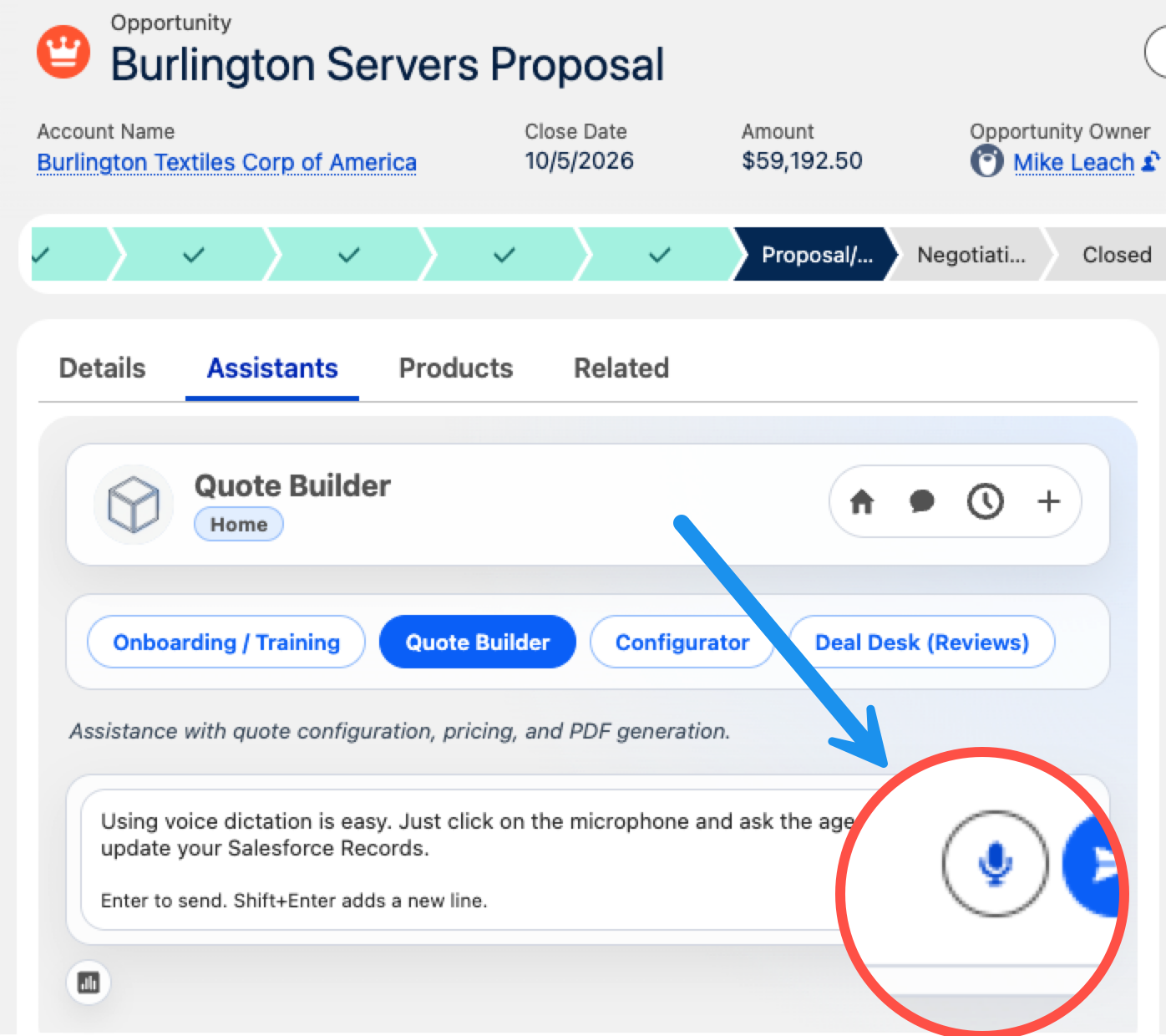
On desktop, select the microphone next to Send.
Use voice dictation on mobile
- Open the AI Assistant in the Salesforce mobile app.
- Select Type instead if you want to use the keyboard.
- To use voice input, tap the large microphone button.
- Speak your request.
- Review and edit the recognized text.
- Select Send.
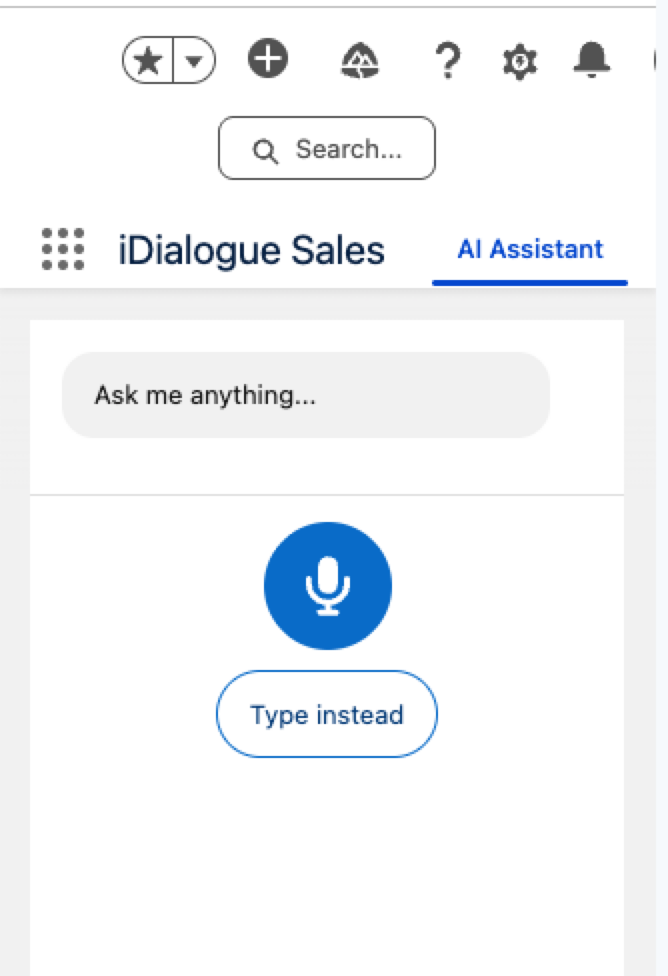
On mobile, tap the large microphone button to start voice input.
Use spoken formatting commands
Use these commands to add punctuation and line breaks while you speak.
| Say | Result |
|---|---|
full stop or fullstop |
Adds a period. |
new line or line break |
Adds a period when needed, then starts a new line. |
new paragraph |
Adds a period when needed, then starts a new paragraph. |
Command matching is not case-sensitive. Say stop or break alone when you want those ordinary words. These words do not stop voice input. Select the microphone again when you want to stop listening.
For example, say:
First thought new line Second thought new paragraph Continue
The result is:
First thought.
Second thought.

Continue
Use one prompt for many records
One prompt can contain several related actions. For example:
Review all open opportunities for this account. Update the Next Step on each record. Create one follow-up task for each owner. Show me a summary before you save the changes.
The agent can complete these actions only if its instructions, tools, Salesforce permissions, and record context allow them. Review the recognized text before you send it.
Continue after a pause
The speech-recognition service can finish a speech segment after a pause. Select the microphone again to continue. Your existing prompt remains in the message box.
Voice input does not send the prompt automatically. You can review and edit the full prompt before you select Send.
Admin rollout checklist
- Confirm that the agent is assigned to the correct Salesforce page or mobile app.
- Confirm that the agent has the required instructions and tools.
- Confirm that users have the required Salesforce permissions.
- Test microphone permission and the formatting commands.
- Test the experience on desktop and mobile.
- Share this article with your Salesforce users.
For configuration steps, see Customize an iDialogue Agent in Agent Studio.
If you need help, submit a support request.