
Use a published Document Builder template to create PDF documents for a group of Salesforce records. Each document uses data from its source record.
A Batch Definition stores the template, record selection, and output settings. A Batch Run records one execution of that definition. This procedure attaches the generated documents to the Batch Run.
Before you start
- Confirm that iDialogue is installed and connected. See Install and configure iDialogue.
- Confirm that you can create Batch Definitions and read the source records.
- Identify the Salesforce object for the documents, such as Account or Opportunity.
1. Open iDialogue Content
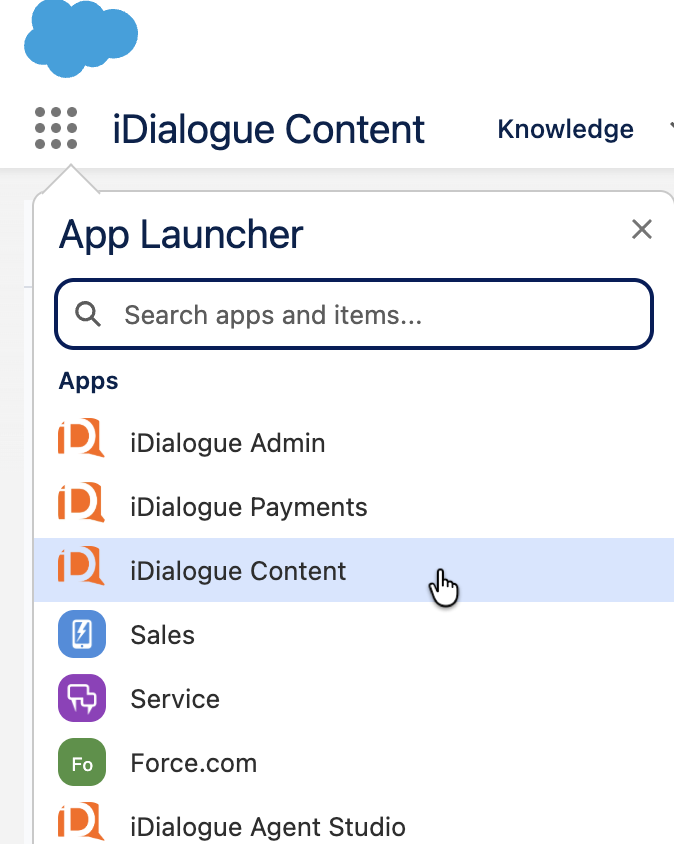
- In Salesforce, open the App Launcher.
- Select iDialogue Content.
2. Create and publish the template
- Open the Document Builder tab.
- Create a new template for the source object. Configure its content and record data.
- Select Publish Template.
Use a Data Merge Template for documents that contain Salesforce record data. Keep the template active. The published template must use the same source object as the batch.
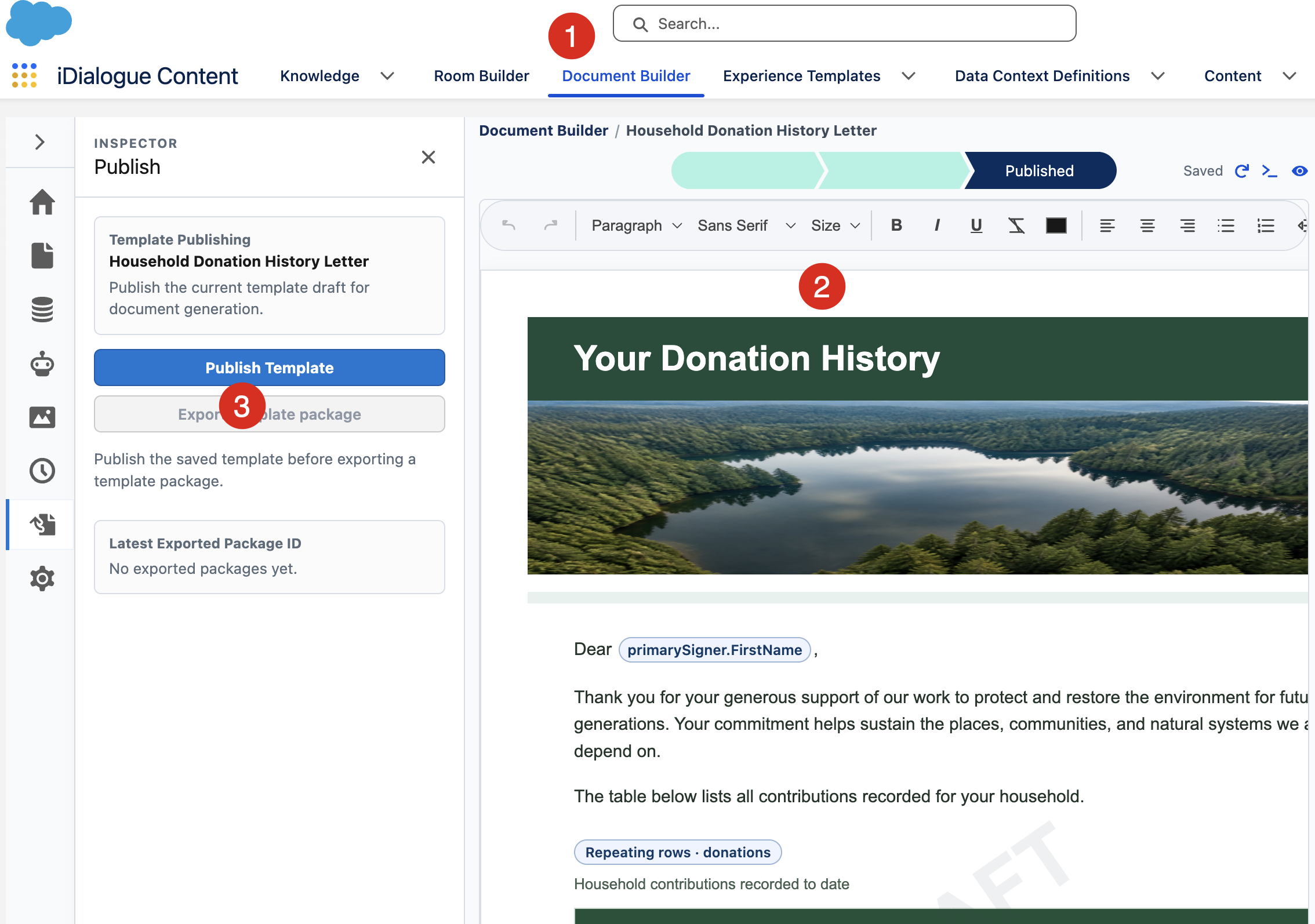
The required action is Publish Template. Template export is not necessary for this procedure.
3. Create the Batch Definition
- In iDialogue Content, open the Batch Definitions tab.
- Select New.
- Enter a descriptive name, such as Account Batch Letter Creation.
- Complete the required fields.
- Select Save.
- Open the AI Assistant tab on the new record.
- If the Create Default AI Agent button appears, select it.
- Ask the Batch Definition Agent to configure the batch.
Use the prompt below. Replace the text in brackets with your values.
Help me configure this Batch Definition for document generation.
Use the published template [template name].
Use records from [object API name] that meet these conditions: [record selection criteria].
Set Query Limit to 5 for the first test.
Set Batch Size to 1.
Attach the PDF documents to the Batch Run results.
Show me the settings for approval before you save them.
- Review the proposed settings.
- Give the assistant any missing information.
- When the settings are correct, select Approve configuration in the assistant.
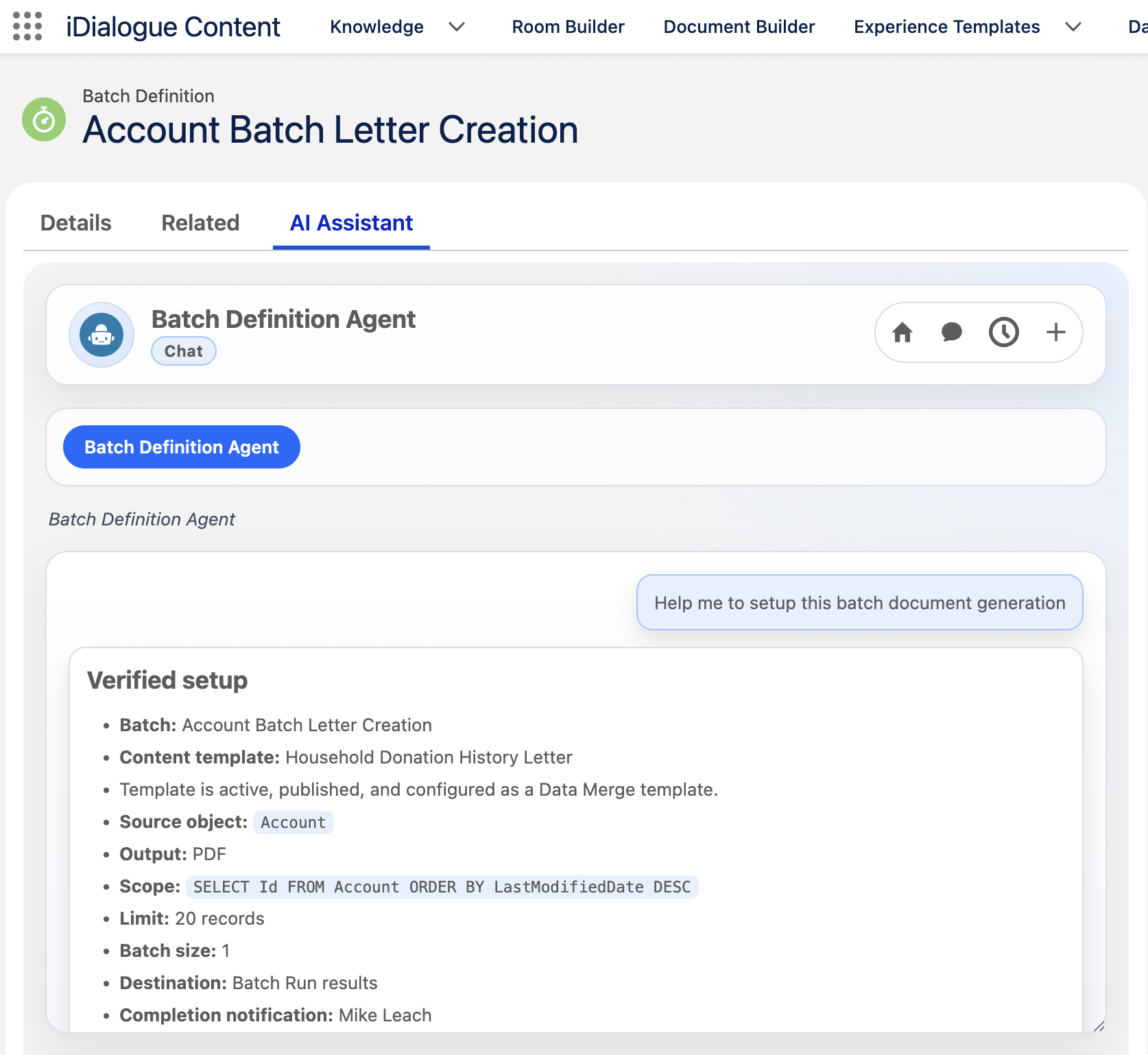
The screenshot shows an example with a Query Limit of 20.
4. Check the settings and select the template
- Open the Details tab.
- Select Edit if changes are necessary.
- Check the settings in this table.
| Setting | Value for the first test |
|---|---|
| Batch Type | Document Generation |
| Salesforce Object Source API Name | The object used by the template, such as Account. |
| Query | A query that selects the required source records. Use the assistant to configure it if necessary. |
| Query Limit | A whole number from 3 to 10, such as 5. |
| Batch Size | 1 |
| Attach Document to Batch Run Results | Selected. |
| Attach Document to Record | Cleared. |
Query Limit sets the maximum number of source records for the run. Batch Size sets the number of records in each processing group.
Use Query Limit to control the test quantity. Do not add a LIMIT clause to Query.
- If you changed the settings, select Save.
- In Batch Definition Template Selection, select Experience Templates.
- Select the template that you published in Document Builder.
- Select Next to save the template selection.
- Review the confirmation.
- Select Finish.
This selection sets the document output to PDF.
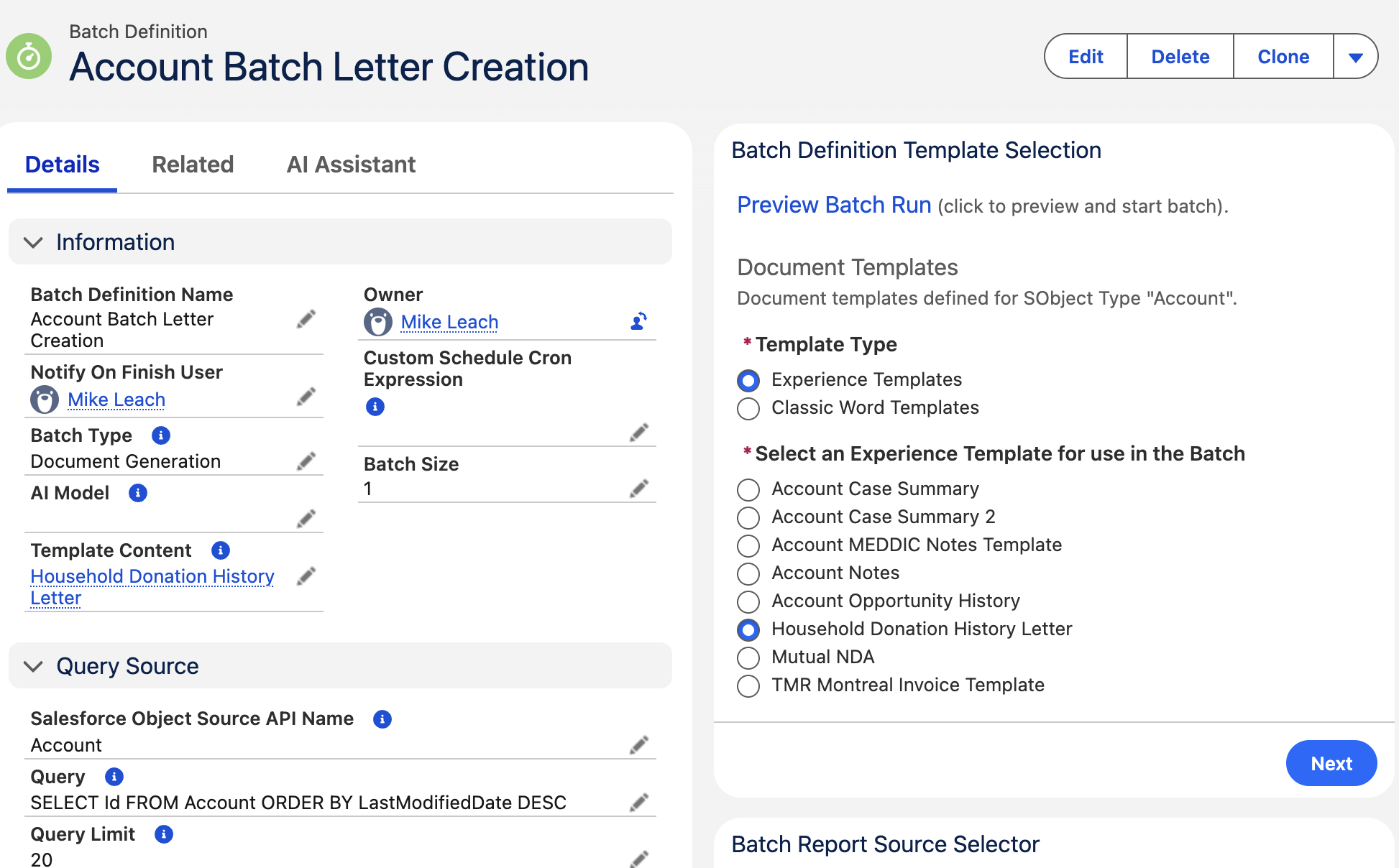
The screenshot shows a Query Limit of 20. Use 3 to 10 for the first test.
5. Preview the batch
- Select Preview Batch Run.
- On Preview Batch Process, check the Errors row.
- If an error appears, correct the Batch Definition or template.
- Open Preview Batch Run again after each correction.
- Confirm that Errors shows (None).
- Check the source object, query, Query Limit, and document template title.
The preview checks the batch settings. Document generation errors can still occur during the run.
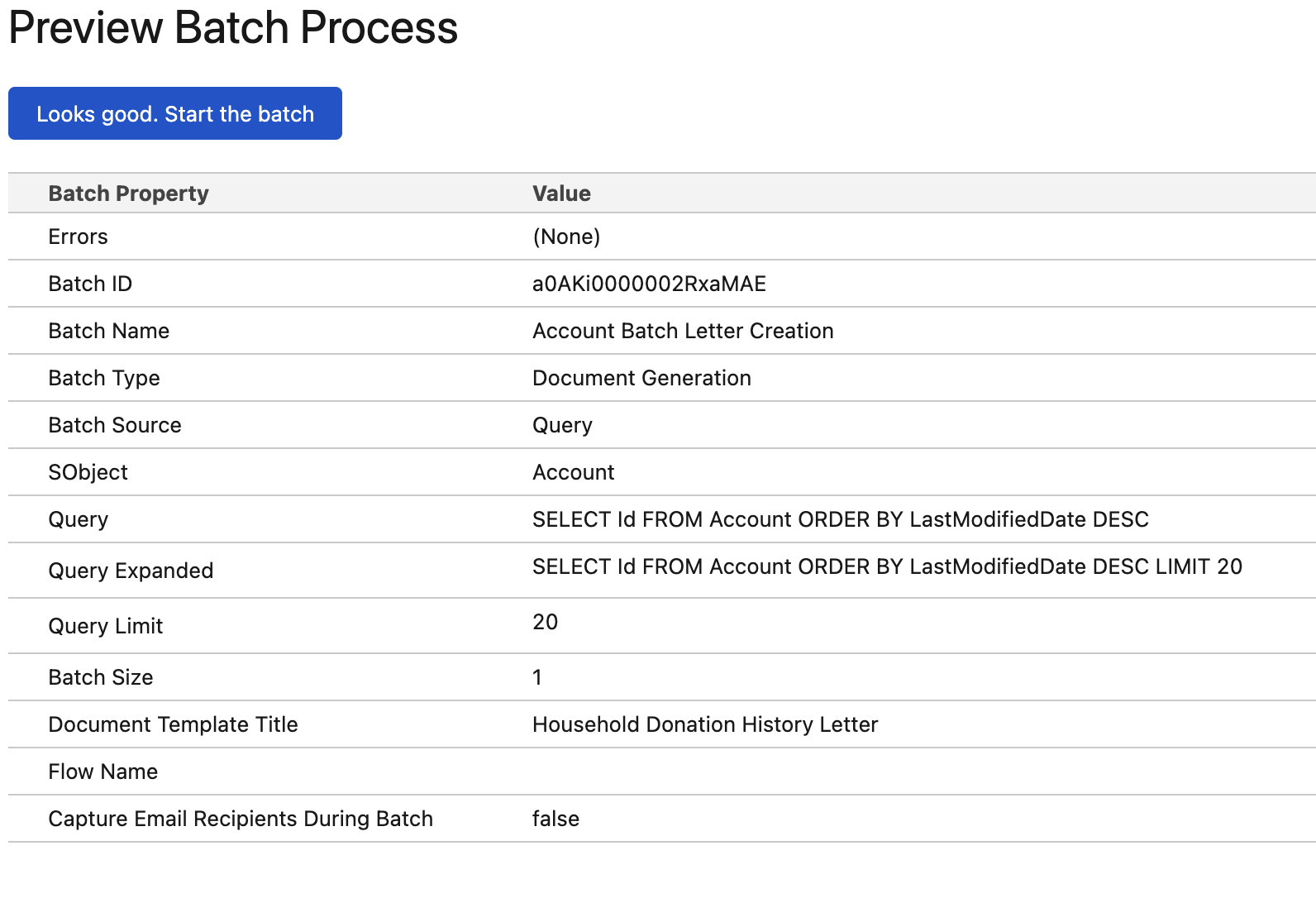
The preview must show your test Query Limit. The example above shows 20.
6. Start the batch and review the documents
- Select Looks good. Start the batch once.
- Wait for the batch start message.
- Open the Batch Run link in that message.
- Refresh the Batch Run page at intervals as documents appear.
- Open the attached PDF documents.
- Check their content, record data, and layout.
The batch runs in the background. Document generation can take several minutes. The Batch Run page contains the document attachments.
After the test documents are correct, increase Query Limit to the required quantity. Preview the settings again before you start the larger batch.
Correct common problems
| Problem | Action |
|---|---|
| The template does not appear. | Confirm that it is an active, published Data Merge Template. Check that its source object matches the batch. |
| The template selection is not saved. | Select the template under Experience Templates. Select Next. |
| The preview reports a Query Limit error. | Enter a positive whole number in Query Limit. Remove any LIMIT clause from Query. |
| The preview reports a document destination error. | Select Attach Document to Batch Run Results. Clear Attach Document to Record. |
| The query returns no records. | Check the source object and record selection criteria with the assistant. |
| Documents are missing after the run. | Refresh the Batch Run page. Check iDialogue Events for errors if documents remain missing. |
If the problem continues, submit a support request. Include the Batch Run ID and the error message.