
Use a trigger to start an iDialogue agent when a Salesforce record is created or changed. Agent Builder creates a Salesforce Flow for the selected agent. Use the Triggers tab to check and control that Flow.
This guide uses a Lead Scoring Agent as an example. The agent checks each new Lead for spam and saves a score and a short reason.
Before you start
Install and configure the iDialogue Salesforce package. See Get Started if setup is incomplete. Your Salesforce user must have permission to edit the agent and manage Flows. Ask your Salesforce administrator for Manage Flow permission if necessary.
1. Open Agent Studio
In Salesforce, open Agent Studio.
2. Select an agent
Open the agent that you want to customize. Check its name and purpose. To install an agent first, see Install an Agent.
3. Configure the agent's task
Open Agent Builder. Describe what the agent must do with the Salesforce record. For example:
Check each new Lead for spam. Save a score from 0 to 5 and a short reason on the Lead.
Specify which Lead fields will store the score and reason. Ask Agent Builder to configure the required instructions, skills, and record fields. For this workflow, make the required instructions and skills available for Background runs. For general setup, see Customize an Agent in Agent Studio.
4. Ask Agent Builder to create a trigger
Describe when the agent must run. For example:
Configure this agent to run when a Lead is created. Create the trigger disabled so I can check it first.
Answer Agent Builder's questions about the object, record changes, and conditions. For record updates, specify which changes must start the agent. If a trigger already exists, ask Agent Builder to explain it before you request another.
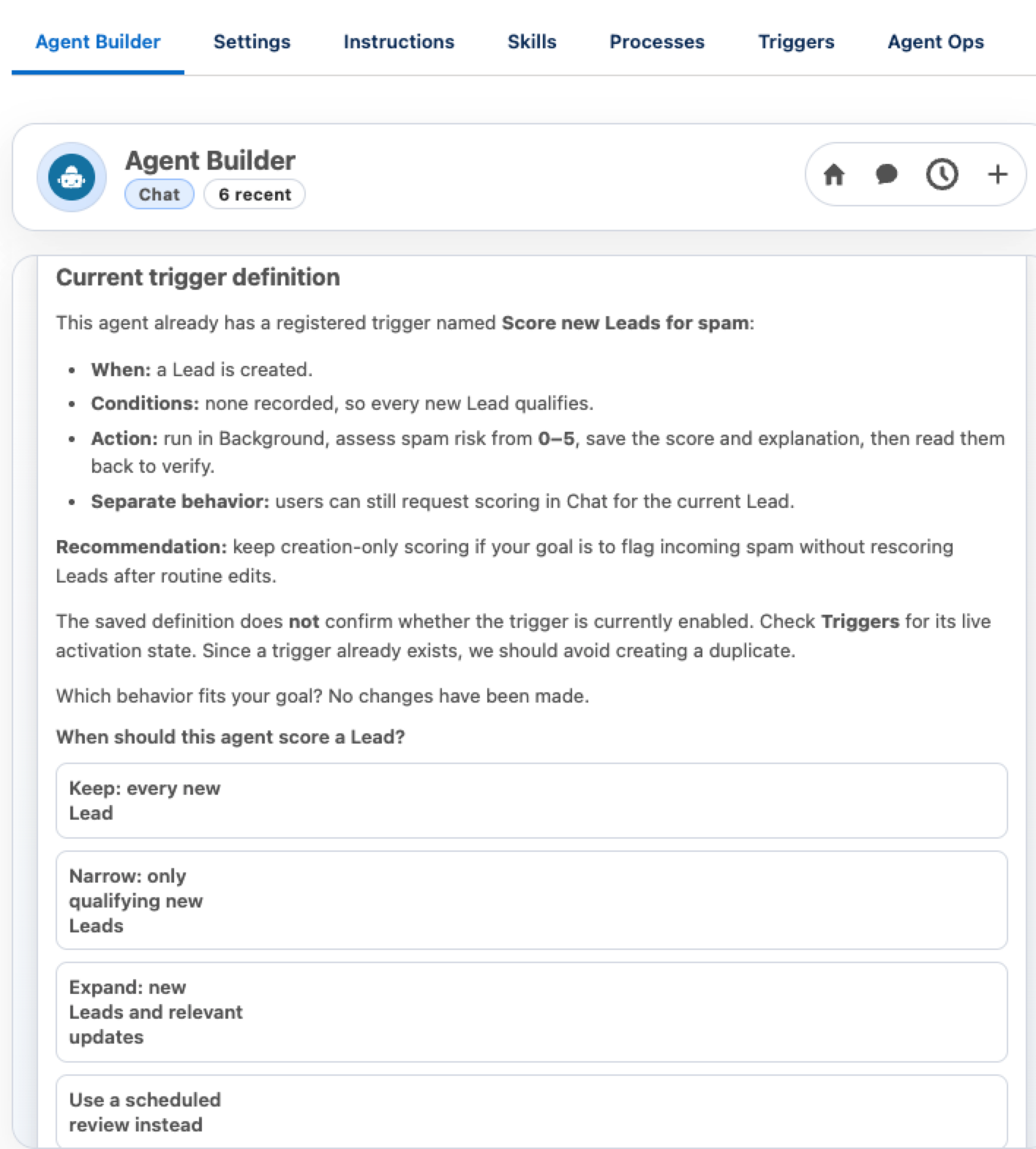
Agent Builder can explain an existing trigger and ask you to confirm the required record changes.
Check the proposed trigger name, object, conditions, and instructions for the agent run. Select Create disabled to check the Flow before you enable it. Select Create and enable when you are ready to start automatic runs. Select Revise if the proposal needs a change. Read the result before you continue.
5. Check the Triggers tab
Click Triggers. Click Refresh to check the current Salesforce state. Check the trigger name, record conditions, state, and Flow version.
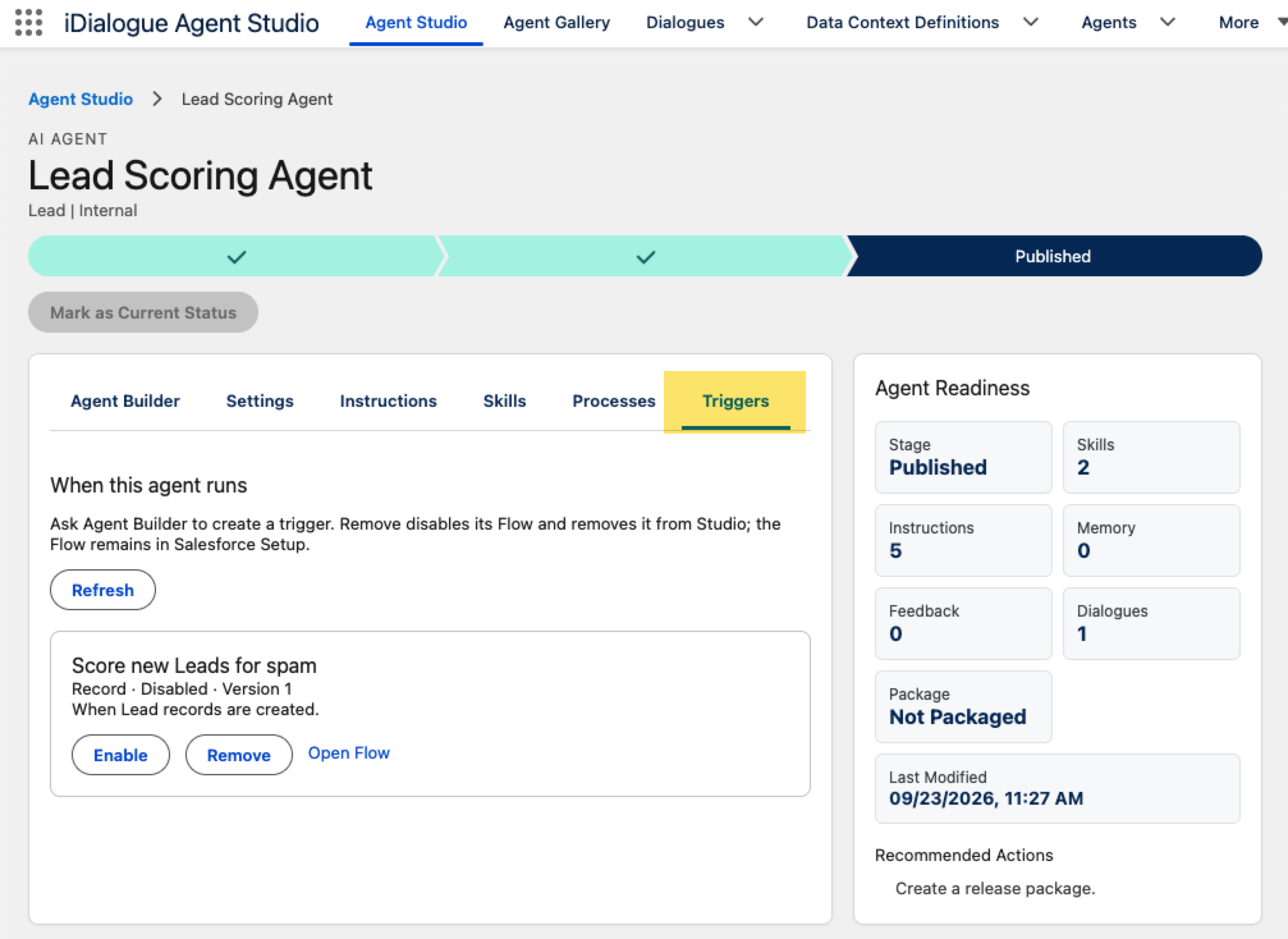
This example shows Score new Leads for spam with a Disabled state.
6. Control or open the Flow
| Control | Result |
|---|---|
| Enable | Activates the Flow so records that meet the conditions can start the agent. |
| Disable | Deactivates the Flow so it cannot start new agent runs. |
| Open Flow | Opens the linked Flow version in Salesforce Flow Builder. |
| Refresh | Checks the current Flow state in Salesforce. |
| Remove | Disables the Flow and removes the trigger from Agent Studio. The Flow remains in Salesforce Setup. |
After you select Enable or Disable, check the result. Click Refresh to confirm the state.
To inspect the Flow, click Open Flow. Check the object, record event, entry conditions, and Run Agent action.
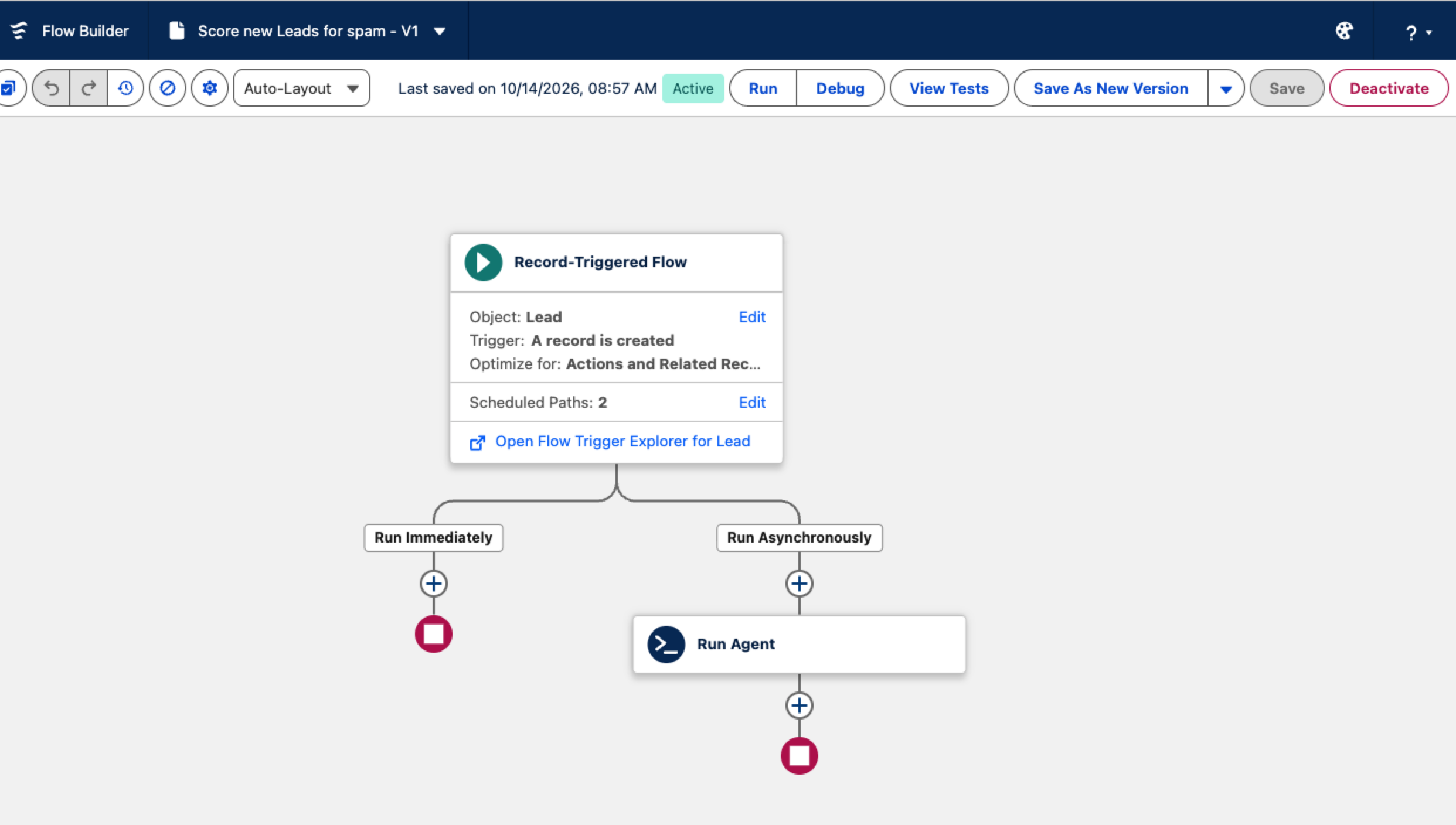
This example shows the Flow after activation. Salesforce Flow Builder shows Active and a Deactivate control. After a change in Flow Builder, return to Agent Studio. Click Refresh.
Check an agent run
Enable the trigger before you test it. For a creation trigger, create a test record that meets the conditions. For an update trigger, change a test record as specified in the trigger conditions. Allow time for the Background run to finish. Check the agent's dialogue and the expected record changes. For the Lead example, check the saved score and reason.
If setup fails
Read the error shown by Agent Builder or the Triggers tab. If creation fails, a trigger card or Flow link might not be available. Correct the reported configuration or permission problem before you try again.
If the Flow exists, use Open Flow to inspect it. If Studio cannot manage the Flow, ask your Salesforce administrator to check it in Salesforce Setup. After the problem is corrected, return to Agent Studio. Click Refresh.
Other trigger types
Agent Builder can also create platform event triggers and scheduled triggers. Specify the event and related record, or the schedule and records to process. For a schedule, check the proposed date, time, and Salesforce org time zone before approval.
For Flow action settings, see Run Agent Action.