
Handle Salesforce Files with OCR and Run Agent
Use this procedure to process a file after a user attaches it to a Salesforce record.
The file can be a business card, receipt, contract, application, invoice, form, photograph, or PDF.
OCR means optical character recognition. OCR changes text in an image or document into readable text.
The Flow uses one processing action: Run Agent Action (AI). iDialogue gets the file and prepares its text. Then, iDialogue starts the selected agent. The agent receives the file text and the related Salesforce record as context.
sequenceDiagram
    actor User
    participant SF as Salesforce record
    participant Flow as Event-triggered Flow
    participant RunAgent as Run Agent action
    participant Service as iDialogue file processing
    participant Agent as Background agent

    User->>SF: Attach image or document
    SF->>Flow: Send file event
    Flow->>RunAgent: Send file IDs, record ID, and agent
    RunAgent-->>Flow: Accept request
    RunAgent->>Service: Prepare file in background
    Service->>Service: Convert image when necessary
    Service->>Service: Extract readable text
    Service->>Agent: Send file text and record context
    Agent->>SF: Use configured tools and rules
Understand background processing
Salesforce starts both supported Flow types in real time. Flow Builder does not show a separate asynchronous path for these Flow types.
Set Run in Background to true. This setting controls the iDialogue agent. It does not control a Flow path.
The Run Agent action accepts the request. Then, iDialogue processes the file outside the Flow transaction.
The Flow sends file IDs and a related record ID. Do not send the file content in a Flow input.
Understand Run Context scope
Agent prompts and tools have a Run Context in Agent Studio. iDialogue applies the same scope to both the instructions sent to the model and the tools the model can invoke:
| Agent Studio Run Context | Available during Chat | Available during Background |
|---|---|---|
| All or blank | Yes | Yes |
| Chat | Yes | No |
| Background | No | Yes |
File processing with this procedure runs in the Background context. Mark tools required by the file automation as All or Background. Keep tools that require a live person, such as interactive questions or approval controls, scoped to Chat.
The dialogue transcript identifies the effective Run Context and lists Runtime Tooling, which contains only the tools offered for that run. A blank request context remains Chat for compatibility with existing chat agents.
Backwards compatibility
Run Context enforcement refines the scope of existing prompts and tools; it does not add a new context or require agent metadata changes. Existing Chat agents continue to receive All and Chat items, and existing Background agents continue to receive All and Background items. A tool intentionally marked All remains available in both contexts; there is no function-name blacklist.
Older dialogues without a stored Run Context remain readable. If a previously queued continuation attempts a tool that is no longer eligible in its effective context, iDialogue returns a normal unavailable-tool result without invoking the function. This prevents an interactive control, duplicate side effect, or worker exception while compatible continuations proceed normally.
Before you start
Make sure that these requirements are complete:
- Install an iDialogue package version that shows Process File Before Running Agent.
- Install an iDialogue package version that includes Related Record ID on the iDialogue Event. This requirement applies only to the iDialogue Platform Event option.
- Configure an active iDialogue connection.
- Make sure that the connection has available usage capacity.
- Configure an iDialogue agent with a background model.
- Add instructions for the file types that the agent must process.
- Add the Salesforce tools or business tools that the agent must use.
- Give the run-as user permission to read the file.
- Give the run-as user permission to read or update the related Salesforce record.
- Make the new Flow scope different from the scope of each other file-processing Flow.
Do not let two Flows process the same file upload. Two Flows can cause duplicate record changes.
Put classification and business rules in Agent Studio. For example, tell the agent how to identify a business card, receipt, or contract. Also, tell the agent when a person must review the result.
Select a Flow trigger
You can use one of these Flow types:
- Automation Event-Triggered Flow
- Platform Event-Triggered Flow
Both Flow types can start the same Run Agent action.
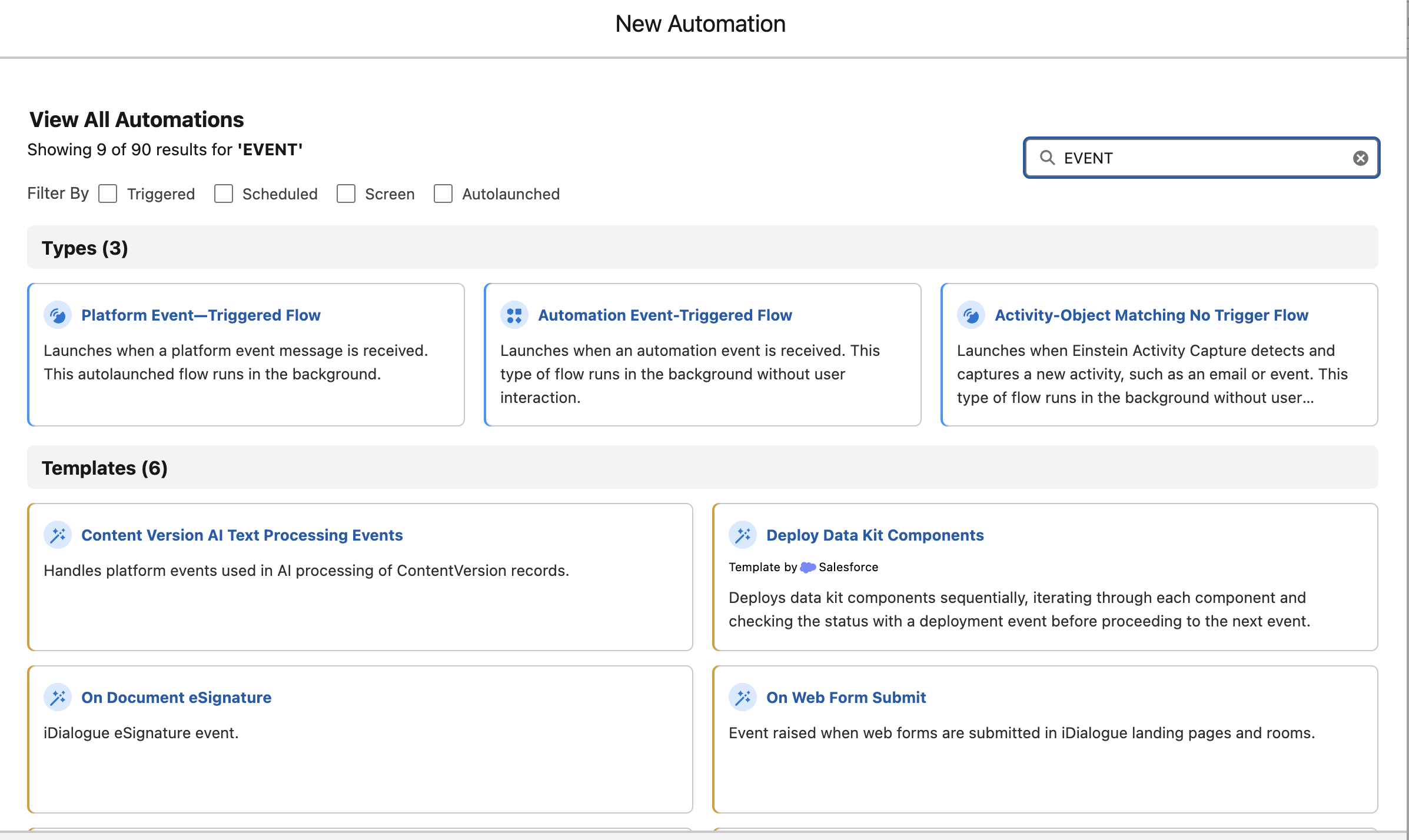
Option 1: Use a Salesforce Automation Event-Triggered Flow
Use the Salesforce File Attach event for a supported standard object. This option is usually the simplest option. The event is already related to one parent object. It also supplies file filters.
- In Salesforce Setup, open Flows.
- Select New Flow.
- Select Automation Event-Triggered Flow.
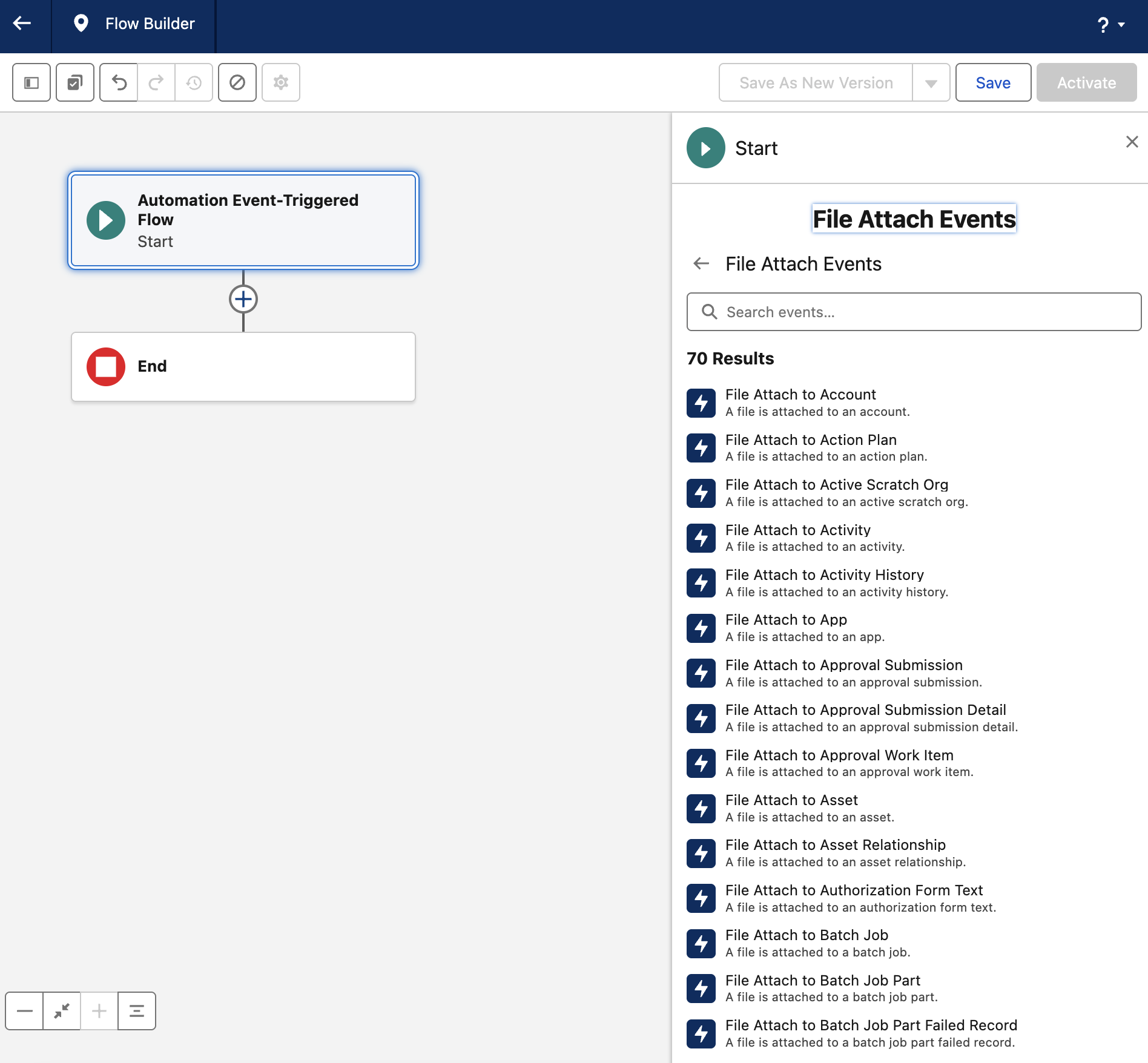
- In the Event Library, select File Attach.
- Select an object-specific event. For example, select File Attach to Account.
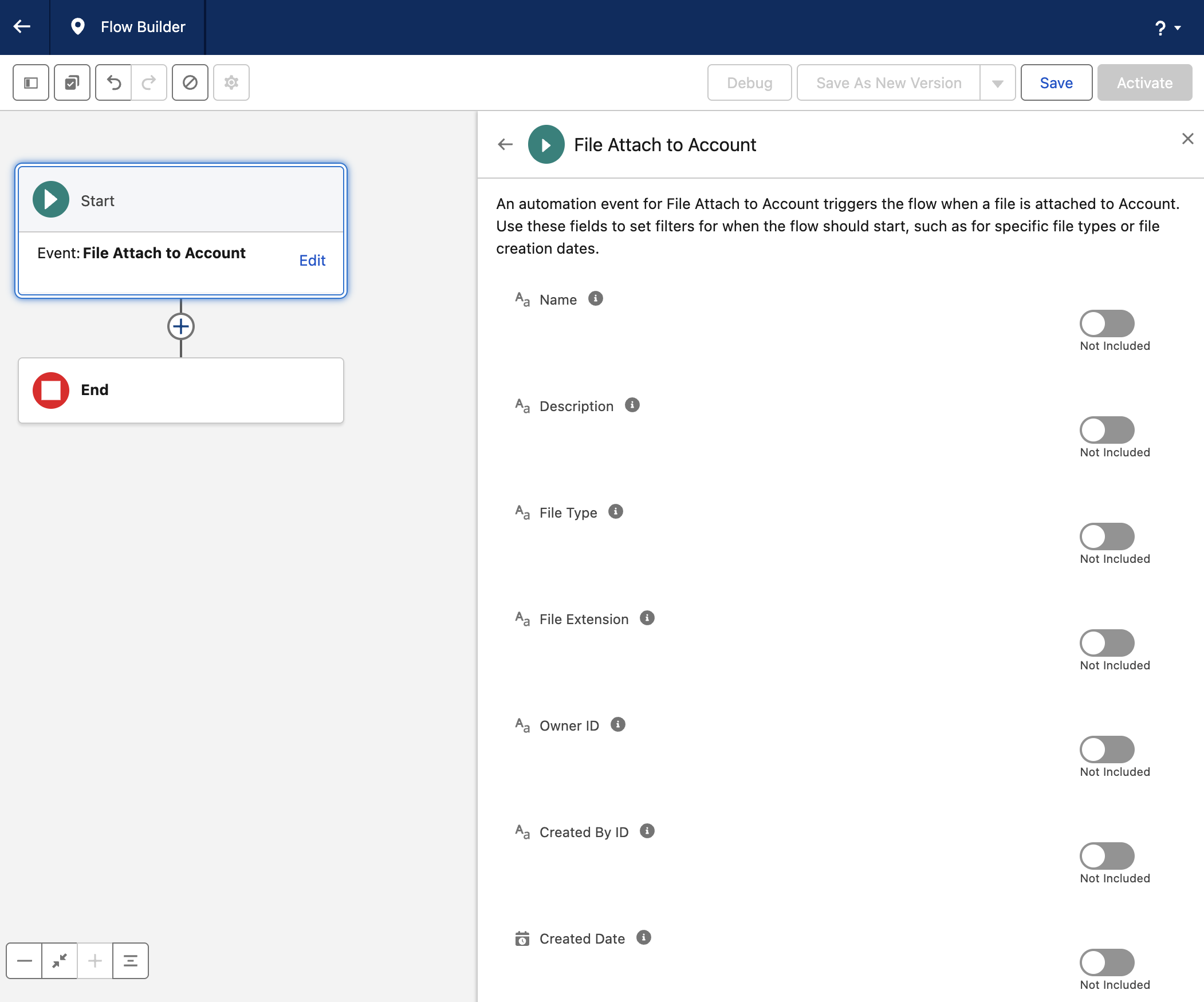
- Include the event fields that your entry conditions use.
- Add the necessary file filters.
You can filter by file name, description, file type, file extension, owner, creator, or creation date. For example, send only PDF and image files to a contract agent. You can also send all Account files to a general file agent.
- Add Run Agent Action (AI) after the Start element.
- Map the Content Document ID to the matching Run Agent input.
- Map the Content Version ID to the matching Run Agent input.
- Map the attached business record ID to Record ID.
Salesforce does not currently supply File Attach automation events for custom objects. Use the iDialogue Platform Event option when the required parent object is not available. For more information, see Build Automation Event-Triggered Flows.
Option 2: Use an iDialogue Platform Event-Triggered Flow
Use this option to keep record-upload processing separate from Image Scanner submissions, or when the Salesforce File Attach event does not support the parent object.
- Create a Platform Event-Triggered Flow.
- Select the iDialogue Event platform event.
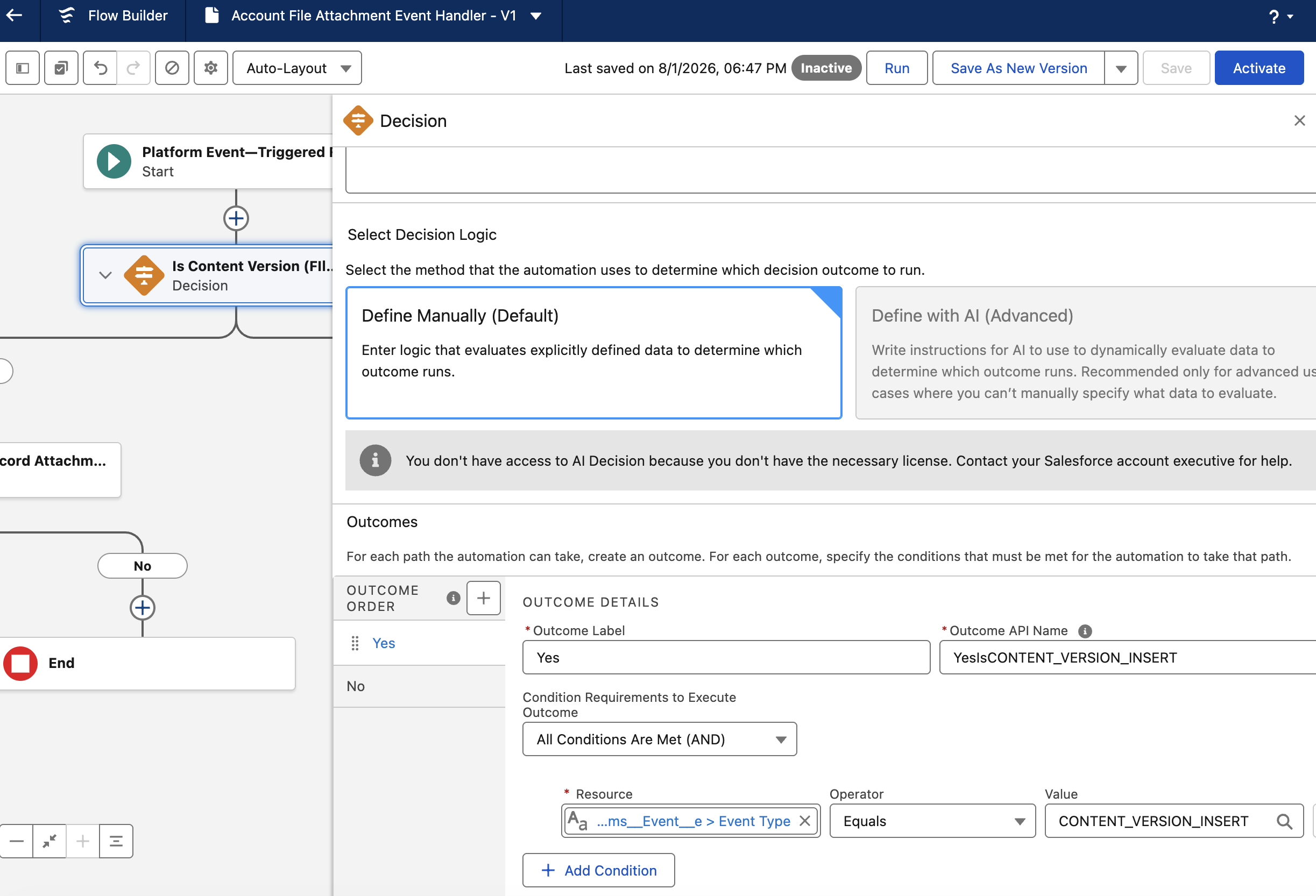
- Add a Decision element.
- Set Event Type to
CONTENT_VERSION_INSERT. - Set Related Record Type to the API name of the parent object. For example, use
Account.
For business-record processing, select All Conditions Are Met (AND):
| Event field | Operator | Value |
|---|---|---|
Event Type (rooms__Type__c) |
Equals | CONTENT_VERSION_INSERT |
Related Record Type (rooms__RelatedRecordType__c) |
Equals | Account, or the intended object API name |
Related Record ID (rooms__RelatedRecordID__c) |
Is Null | False |
These event conditions exclude private uploads that have no related business record. Image Scanner versions with private upload attach selected Files only at Submit and use IMAGE_SCAN_SUBMITTED for processing. Their insert events retain Origin apex; do not filter those events by an imageScanner origin. Earlier scanner versions attach during upload and require an upgrade for this behavior.
For example, a sales rep can submit business card images through Image Scanner on an Account. The scanner agent receives both images and that Account. The rep can also upload an RFP through the Account's native Files component. The Account insert-event handler sends that file to an RFP agent that creates a new Opportunity and its Tasks. An RFP can also be an image, so file extension alone does not separate these workflows.
Keep Library-only routing separate; it does not require a related business record. Native Salesforce File Attach handlers can run when scanner Submit adds record links, so review their conditions for duplicate processing. See Image Scanner Flow configuration.
Route one Library folder by name
Use Library and folder conditions when one agent must process files from one Salesforce Library folder. A Salesforce Library is a ContentWorkspace record.
For example, use these conditions to route business cards from the AI Inbox Library. Select All Conditions Are Met (AND).
| Event field | Operator | Value |
|---|---|---|
Event Type (rooms__Type__c) |
Equals | CONTENT_VERSION_INSERT |
Content Workspace Name (rooms__ContentWorkspaceName__c) |
Equals | AI Inbox |
Content Folder Name (rooms__ContentFolderName__c) |
Equals | Business Cards |
A user can change a Library name or folder name. Two Libraries can have folders with the same name. Use rooms__ContentWorkspaceID__c and rooms__ContentFolderID__c when the Flow needs stable and unique routing.
rooms__RelatedRecordID__c can be blank for a file that a user uploads only to a Library. Leave the Record ID input blank when the agent does not need a related business record. Always map rooms__ContentVersionID__c and rooms__ContentDocumentID__c to the matching Run Agent inputs.
See the iDialogue Platform Event reference for the field schema. See iDialogue Platform Event types for the event-type list.
- Add Run Agent Action (AI) to the matching Decision path.
- Map the event fields as shown in this table.
| Run Agent input | iDialogue Event field |
|---|---|
| Record ID | rooms__RelatedRecordID__c |
| Content Version ID | rooms__ContentVersionID__c |
| Content Document ID | rooms__ContentDocumentID__c |
For this event, rooms__RecordId__c contains the Content Version ID. Do not map this field to Record ID. Use rooms__RelatedRecordID__c for the Account, Contact, Opportunity, or other related business record.
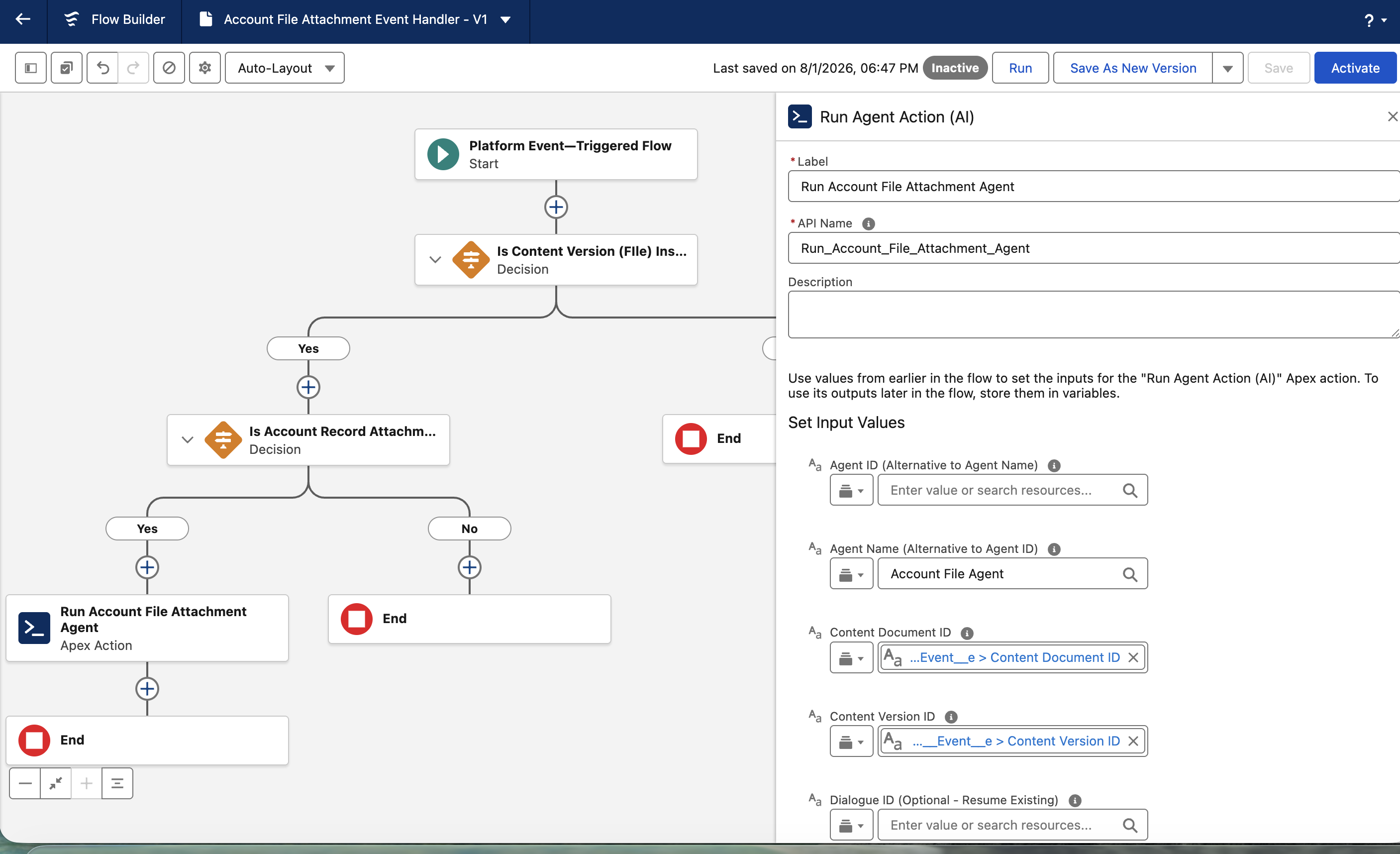
Configure the Run Agent action
Use these settings for both Flow options:
| Input | Value |
|---|---|
| Agent ID or Agent Name | Select the iDialogue agent that processes the file. |
| Record ID | Select the ID of the related business record. |
| Content Version ID | Select the Content Version ID from the event. |
| Content Document ID | Select the Content Document ID from the event. |
| Dialogue ID | Leave this input blank to start a new background dialogue. |
| User Prompt | Leave this input blank for general file processing. Use a prompt only for a narrow Flow purpose. |
| Run in Background | Set this input to true. |
| Process File Before Running Agent | Set this input to true. |
Do not put file content, credentials, or Salesforce IDs in User Prompt. Use Flow resources for all ID inputs.
For a general OCR Flow, leave User Prompt blank. The agent instructions must classify the file and select the correct action.
Use a Flow prompt only when the Flow has one specific purpose. For example:
Process this new Account file. Use the document text in context. Follow your configured instructions and tools. Do not guess missing values. Do not create duplicate records.
Keep these items in Agent Studio:
- Classification rules
- Data extraction rules
- Record update rules
- Duplicate prevention rules
- Tool instructions
- Human review rules
Do not copy these rules into each Flow.
What happens after a file upload
- Run Agent validates the request.
- Run Agent accepts the background request.
- iDialogue gets the referenced Salesforce file.
- iDialogue keeps the original Salesforce file unchanged.
- iDialogue converts a supported HEIC or HEIF image when conversion is necessary.
- iDialogue extracts readable text from the file.
- iDialogue starts the background agent.
- The agent receives the prompt, file text, and related Salesforce record as context.
- The agent follows its instructions and uses its permitted tools.
Monitor the request
Use iDialogue Events in Salesforce to troubleshoot a failed request.
Open the Salesforce App Launcher.
Select iDialogue Admin.
Open the iDialogue Events tab.
Select a list view that has this filter: Event Type equals
ERROR.Create the filtered list view if it does not exist.
Review these fields:
- Subject
- Action Type
- Body
- Content Version ID
- Record ID
- Agent
- Created Date
An error event contains a summary and a recommended action. It also contains available file and record IDs. The Body field contains a reference ID for iDialogue Support.
The error event does not contain file content or extracted text.
If you cannot see iDialogue Admin or iDialogue Events, assign the iDialogue Admin User permission set.
iDialogue Events contains error records only. The absence of an error record does not show that processing is complete. To verify success, review the expected agent response, record update, or other business result.
Verify the result
Use a test record. Use an agent that makes safe and visible changes.
- Attach a supported image or document to the test record.
- Confirm that the Flow starts.
- Confirm that iDialogue accepts one Run Agent request.
- Confirm that no related iDialogue Event has Event Type equal to
ERROR. - Open the original Salesforce file.
- Confirm that the original file did not change.
- Confirm that the agent uses information from the file correctly.
- Confirm that the agent receives the correct related business record.
- If transcript logging is enabled, confirm that the transcript shows Run Context: Background.
- Confirm that Runtime Tooling contains only All and Background tools and does not contain Chat-only tools.
- Confirm that the agent uses only the permitted tools.
- Confirm that the agent makes only the expected record changes.
Test file chat
- Open the Content Version or Content Document record.
- Find the Agent Assistant component.
- Ask an agent to summarize the file.
On first access, the agent can show this response:
Give me a minute (or two) to analyze this file. First time I've seen this. It should be available for chat soon.
- Wait for the file processing to finish.
- Refresh the page, or start a new dialogue.
- Ask the agent to summarize the file again.
- Confirm that the agent uses the prepared file text.
Use representative test files. Examples include:
- A photograph of a business card
- A receipt
- A scanned contract
- A multiple-page PDF
- A supported iPhone HEIC image
Understand file limits
OCR results depend on the file format, image quality, document layout, and visible text.
Some HEIC or HEIF variants are not supported. Test files from each device and source that your team uses.
iDialogue does not change the original Salesforce file if file preparation fails.
Optional file-reading tools remain available to the agent. These tools can provide more file information. The Flow does not require these tools.
Troubleshooting
Trace one Library upload
Use one test file with a unique file name. Start the Platform Event Flow debug session before you upload the file. Flow debug can run the configured Apex action. Use an agent and file that are safe for testing.
Follow these checks in order:
- Inspect the platform event in Flow debug.
- Confirm that Event Type is
CONTENT_VERSION_INSERT. - Confirm that Content Version ID and Content Document ID contain Salesforce IDs.
- Confirm that Content Workspace Name is
AI Inbox. - Confirm that Content Folder Name is
Business Cards. - Confirm that the folder Decision uses All Conditions Are Met (AND).
- Confirm that the Flow takes the path to Run Agent Action (AI).
- Inspect the Run Agent outputs. Review Success, Error Message, and Dialogue ID.
Salesforce can create the folder membership after the upload transaction. ContentVersionInsertEventQueue is a Queueable Apex job. The job checks the folder after the transaction commits. The job can make one retry after a minimum delay of one minute. A blank folder after the retry means that Salesforce did not supply a user-visible child folder. A Flow that requires Business Cards must not run for that fallback event.
A FutureHandler entry for ContentVersionTriggerHandler is the existing remote file synchronization process. The entry does not show that the folder Queueable ran. Look for ContentVersionInsertEventQueue in the Queueable Apex job or debug-log details.
The Run Agent action starts the server-side file-processing sequence. Server-side Ops logs start only after the Flow invokes the action and the API receives the request. Use the Content Version ID and orchestration ID to follow the request in Ops logs.
An iDialogue Event record reports a request error or a terminal file-processing error. A successful request does not create an iDialogue Event record. The absence of an error record does not prove that the Flow matched the event or that processing completed.
| Problem | Action |
|---|---|
| The Flow does not start. | Confirm that the selected File Attach event supports the parent object. For an iDialogue event, confirm CONTENT_VERSION_INSERT and the object API name. |
| The Library-folder path does not run. | Use Flow debug. Confirm Content Workspace Name, Content Folder Name, and the AND condition. |
A FutureHandler log completed. |
Check the Queueable jobs for ContentVersionInsertEventQueue. The FutureHandler is a separate remote synchronization process. |
| Run Agent does not appear in Ops logs. | Confirm that the Flow reached Run Agent Action (AI). Then review the action outputs. |
| The agent receives the wrong record. | For an iDialogue event, map rooms__RelatedRecordID__c to Record ID. Do not use rooms__RecordId__c. |
| Run Agent does not accept the request. | Check the iDialogue connection, package access, usage capacity, selected agent, and background model. |
| File processing does not finish. | Open iDialogue Admin. Select iDialogue Events. Filter Event Type to ERROR. Review Subject and Body. |
| You need help from iDialogue Support. | Send Support the reference ID and Content Version ID from the error event. Do not send file content unless Support requests it. |
| The agent does not take the expected action. | Check the Agent Studio instructions, related record, enabled tools, run-as permissions, and duplicate prevention rules. |
| The record updates two times. | Confirm that other file-processing Flows do not process the same file. For Image Scanner, check the business-record event conditions and any native File Attach handler. |
| An Experience Cloud upload causes a Flow error. | Confirm that the uploader has access to the platform event. |