
See what must happen next to move the deal forward.
Turn the process behind a Salesforce Opportunity into a shared visual plan. Sales Process Mapping Agent helps sellers and managers map qualification gaps, approval paths, customer decisions, and close milestones—without drawing each flowchart by hand.
Find the agent in Agent Gallery · Set up your first sales process diagram
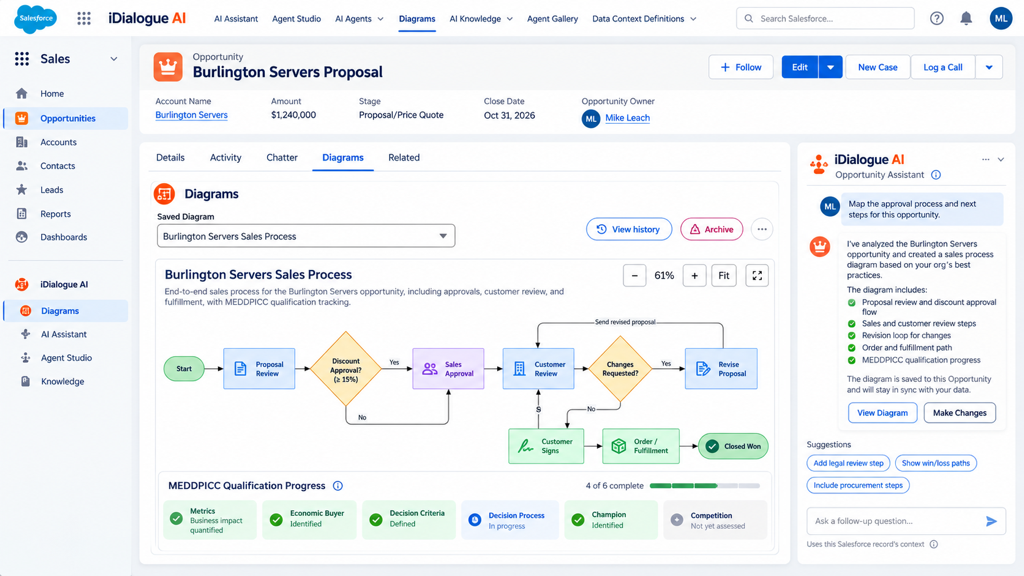
Product illustration. See the setup guide for current controls. Saved diagrams are updated on request, not automatically synchronized with record changes.
One record. A clearer plan.
Salesforce tells you the deal stage. A process diagram helps explain the work behind it: who needs to decide, which questions remain open, and what depends on another step.
- Prepare for deal reviews. Give sellers and leaders a common view of the path to signature.
- Make qualification visible. Map MEDDIC or MEDDPICC evidence, gaps, and next steps.
- Explain approval paths. Show your supplied pricing rules, approvers, and customer review loops.
- Keep the plan with the Opportunity. Reopen saved diagrams in later conversations and revise the current version.
Start with the question your team needs to answer
| Sales question | Diagram to request |
|---|---|
| What remains before we can close? | A close plan with dependencies and missing decisions |
| Where is qualification incomplete? | A MEDDPICC map with complete and open steps |
| Who must approve this quote? | An approval flow based on your actual policy |
| Who participates in the buying decision? | A stakeholder map using known roles |
| Are the remaining tasks on track? | A timeline using available task dates and status |
The agent uses the record context and tools available to it. Your sales methodology and approval policies supply the rules; the diagram does not invent or enforce them.
Ask, review, save, revise
Start in Agent Assistant on the Opportunity. For example:
Map the path from this Opportunity's current stage to signature. Use known facts, show missing decisions, and ask about unknown approval rules. Describe the plan before saving it.
Review the proposed plan, then ask the agent to save it. Open Diagram Workspace on the same record to see the result.
When the deal changes, continue from the saved diagram—even in a new conversation:
Find the saved close plan for this Opportunity. Read its current version. Add the legal review step and keep the other steps unchanged. Show me the proposed change before saving.
Each saved change creates a revision. Users with Edit access to the Opportunity can inspect earlier revisions in View history and restore them. Restoring an earlier version creates a new current revision.
Make complex diagrams easier to read
Use zoom, Fit, and 100% to inspect the diagram. Drag to move around the canvas. Use the lower-right handle to change the viewer height.
Ask for color-coded flowchart steps, such as green for complete and amber for open. Keep status words in the labels. Timeline diagrams use standard status colors for planned, active, complete, and critical work.
Set up the agent and workspace
You need a working iDialogue installation with Diagram Workspace available in Lightning App Builder. The walkthrough targets about ten minutes after these prerequisites are complete.
- Install Sales Process Mapping Agent from Agent Gallery.
- Check its Opportunity settings and List Diagrams, Get Diagram, and Save Diagram skills in Agent Studio.
- Add Agent Assistant and Diagram Workspace to an Opportunity Lightning record page.
- Create and view one diagram on a test Opportunity.
No separate Diagram permission set or new Trusted URL is required. Existing iDialogue access and Salesforce record access apply. Admins can use standard component visibility filters and page assignments.
Follow the setup guide and copy the sample prompts
Keep the process grounded
A saved diagram is a visual plan, not a Salesforce automation. Saving it does not approve a quote, complete a Task, change a deal stage, or send a customer message.
Ask the agent to identify missing facts and explain proposed changes before saving. Review the displayed result with the deal owner. Request a new revision when the underlying facts change.
For additional setup help, see Install agents and Customize an Agent in Agent Studio. Use Data Context Builder when you need to refine the record information available to your agent.